 Vyrazíme
The whole event on one screen
What's on you, what you're waiting for and what's agreed. The event details change as the event gets closer, from voting to countdown, weather and album.
The event details are the place you come back to most while planning. On one screen you see what you need to do, what's already agreed and who's coming.
The details adapt to every phase of the event and the video at the top goes through all of them. While planning, voting is at the top, before you leave there is a countdown with weather and a map, and during the event the album and expenses.

What Vyrazíme does
- What now? Everything that's waiting for you: suggest, vote, pick, invite friends or complete your tasks.
- Still deciding. What you have already done and where you're waiting for the others or for the organizer.
- What's agreed. The confirmed date, place, accommodation and decided polls together.
- Countdown and weather. Before you leave, the header counts down the days and shows the forecast for the first days of the event.
- Map and Navigate. An agreed place or accommodation with a location gets a map with a button that starts navigation.
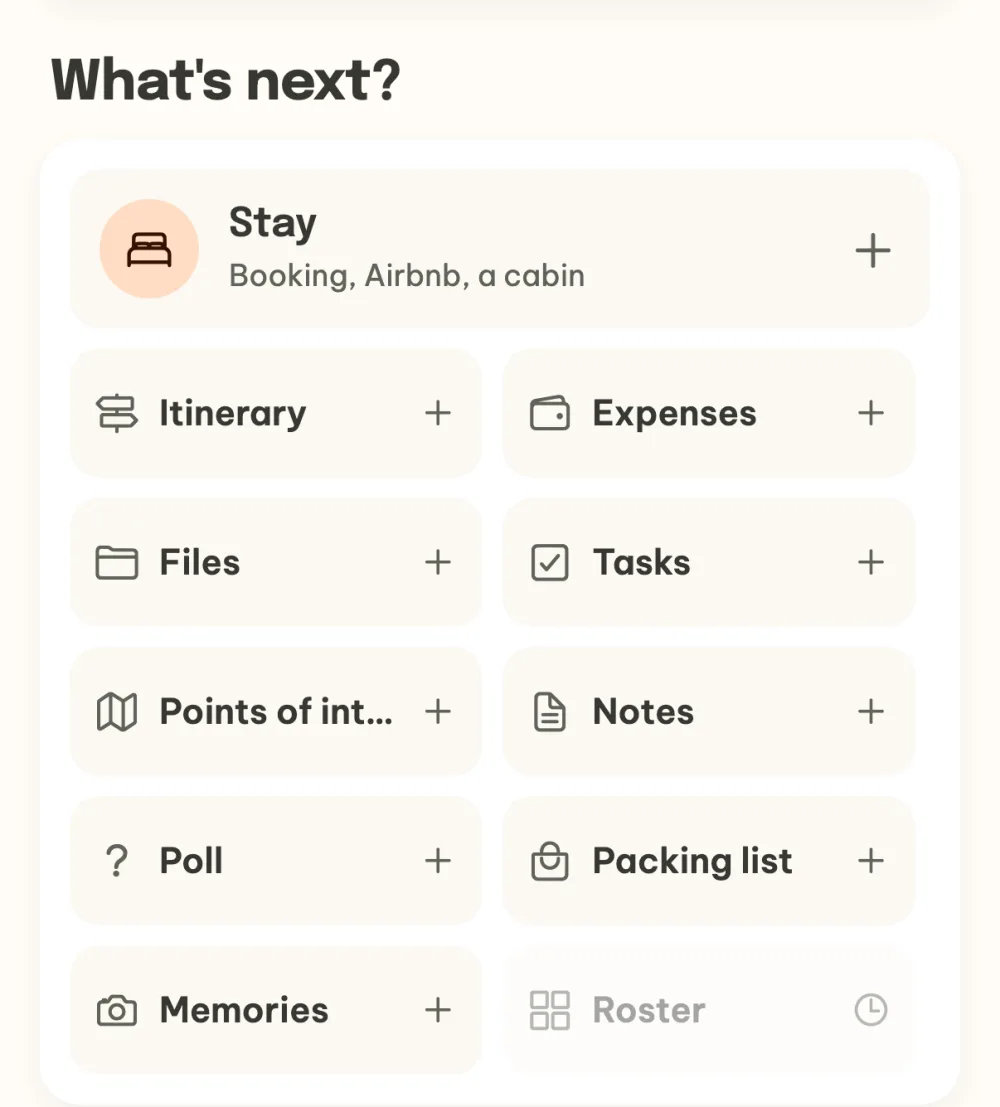
- What's next? Tiles with what you can add to the event, from accommodation to a packing list.
- Chat in one tap. The floating button at the bottom right opens the event chat.
Step by step
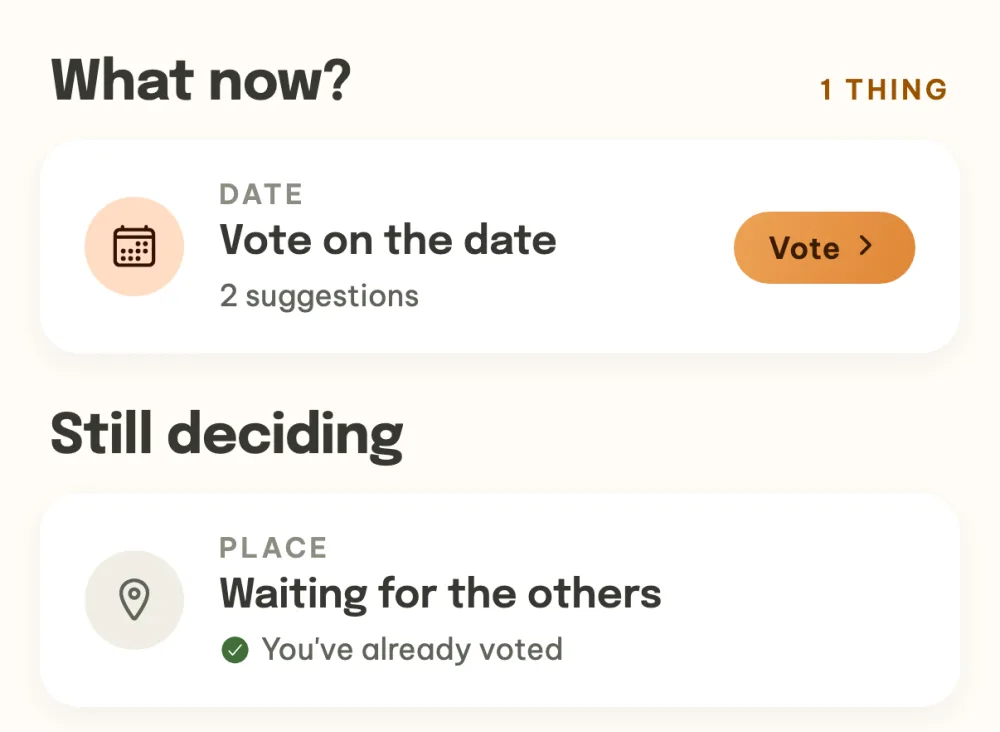
See what's on you. The What now? section at the top shows everything that's waiting for you, for example Vote on the date. The colour gives you a hint: orange is your move, green is decided and grey means you're waiting for the others. Once you vote, the row moves to the Still deciding section and gets a green tick.
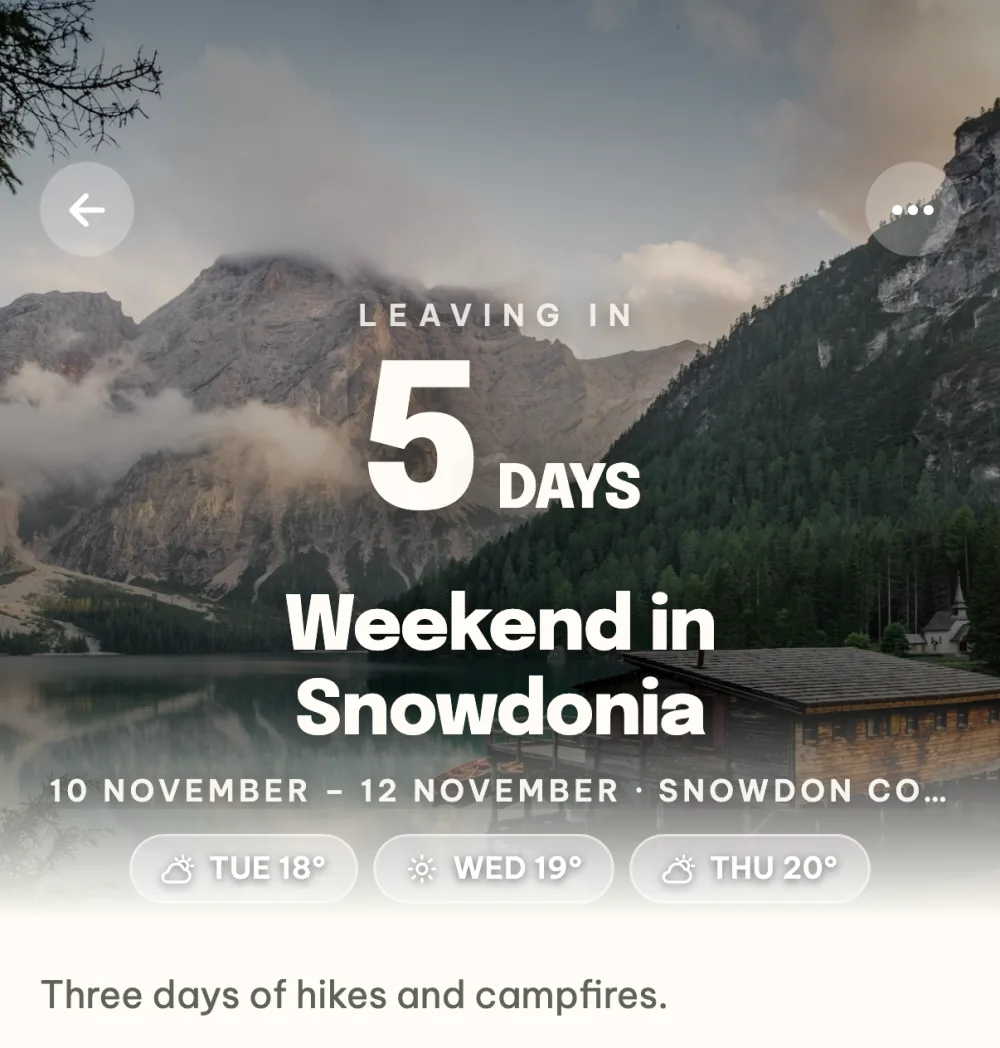
Watch the countdown to departure. As soon as the date is confirmed, the event moves to the Leaving soon phase. The header then counts down the days to departure and below the name are the date, the place and pills with the weather forecast for the first days of the event.
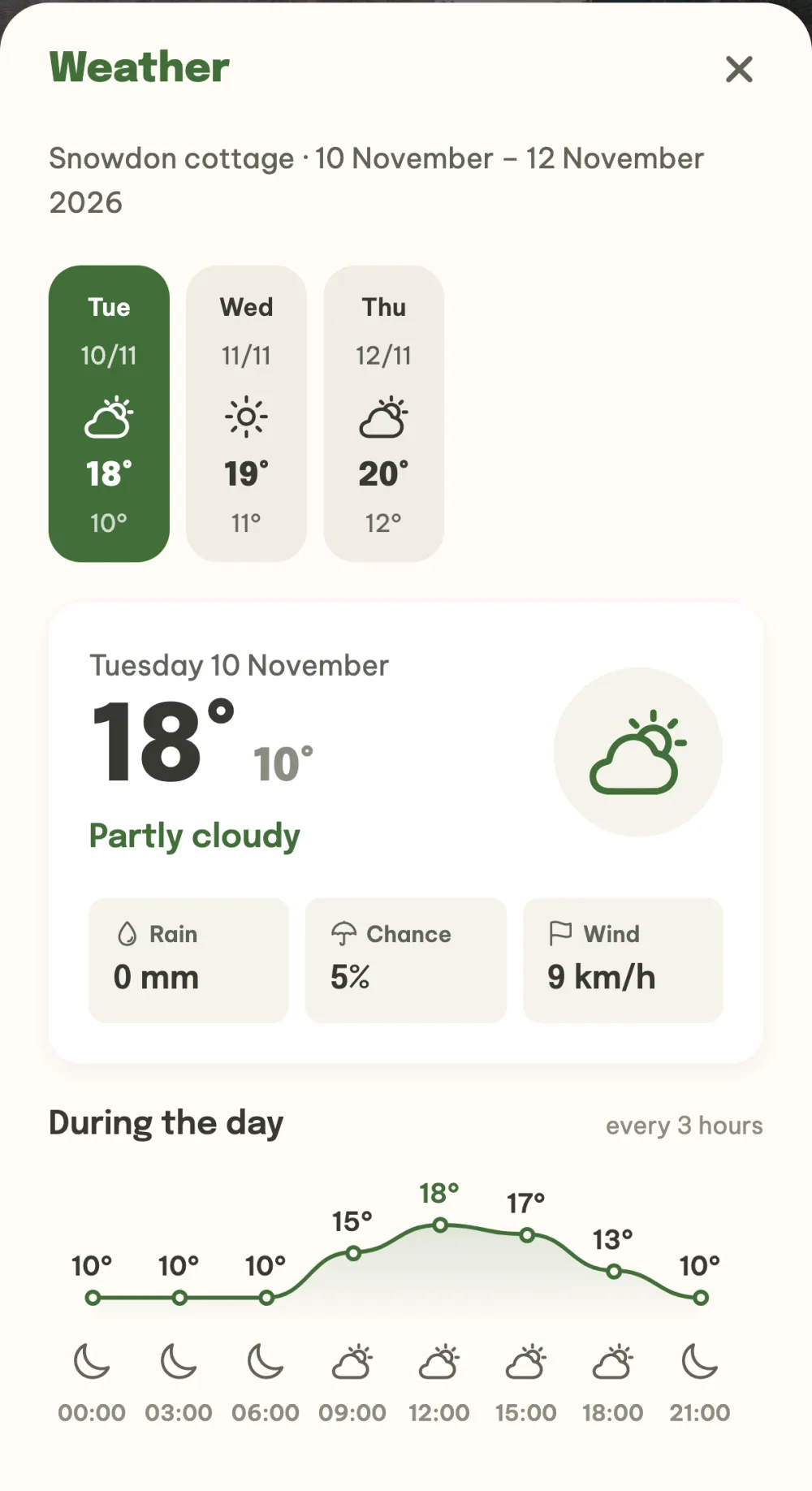
Open the detailed forecast. Tap the weather pill to open the forecast for the days of the event: the highest and lowest temperature, rain, chance of rain, wind and below that the temperature during the day every three hours. You switch between the days at the top.
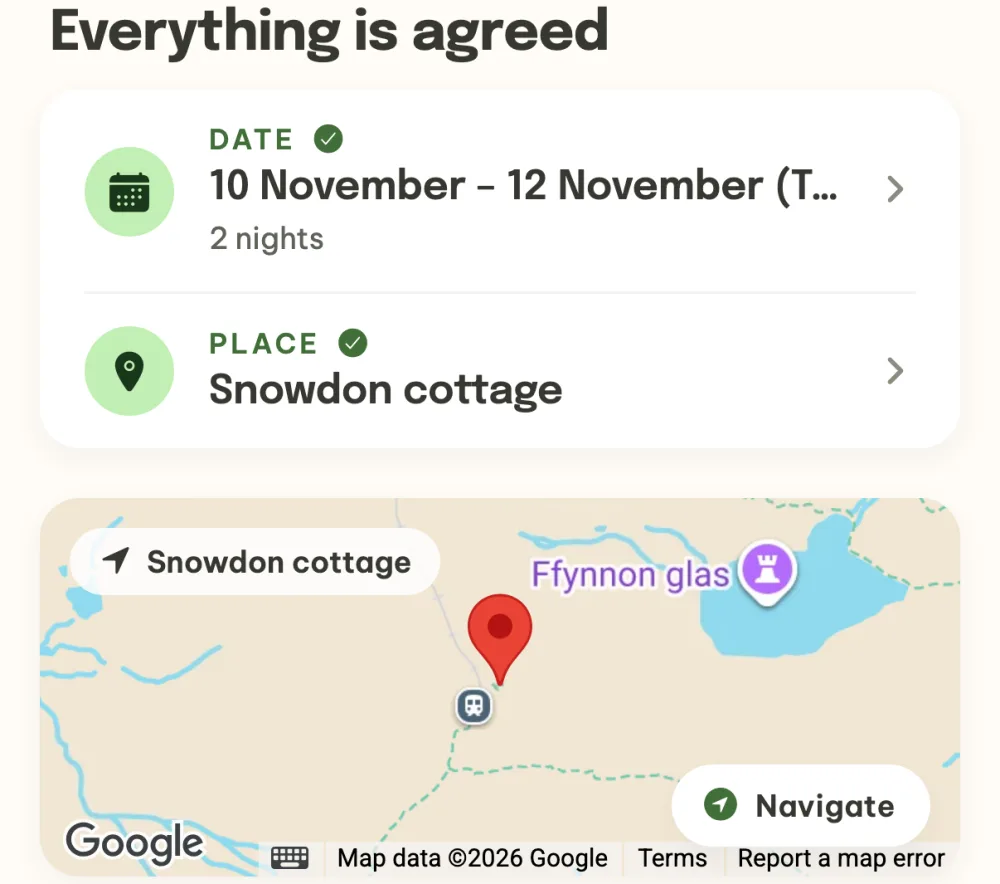
Keep what's agreed together. The What's agreed section has the confirmed date, place, accommodation and decided polls, and tapping a row opens its details. Once nothing is being voted on any more, the section is called Everything is agreed. If the place or accommodation has a location, there is a map below the section with a Navigate button that starts navigation on your phone.
Add what the event needs. The What's next? panel offers tiles with what you can add to the event: Stay, Itinerary, Expenses, Files, Tasks, Points of interest, Notes, Poll, Packing list or Roster. Whatever you add shows up in the event details as its own section.
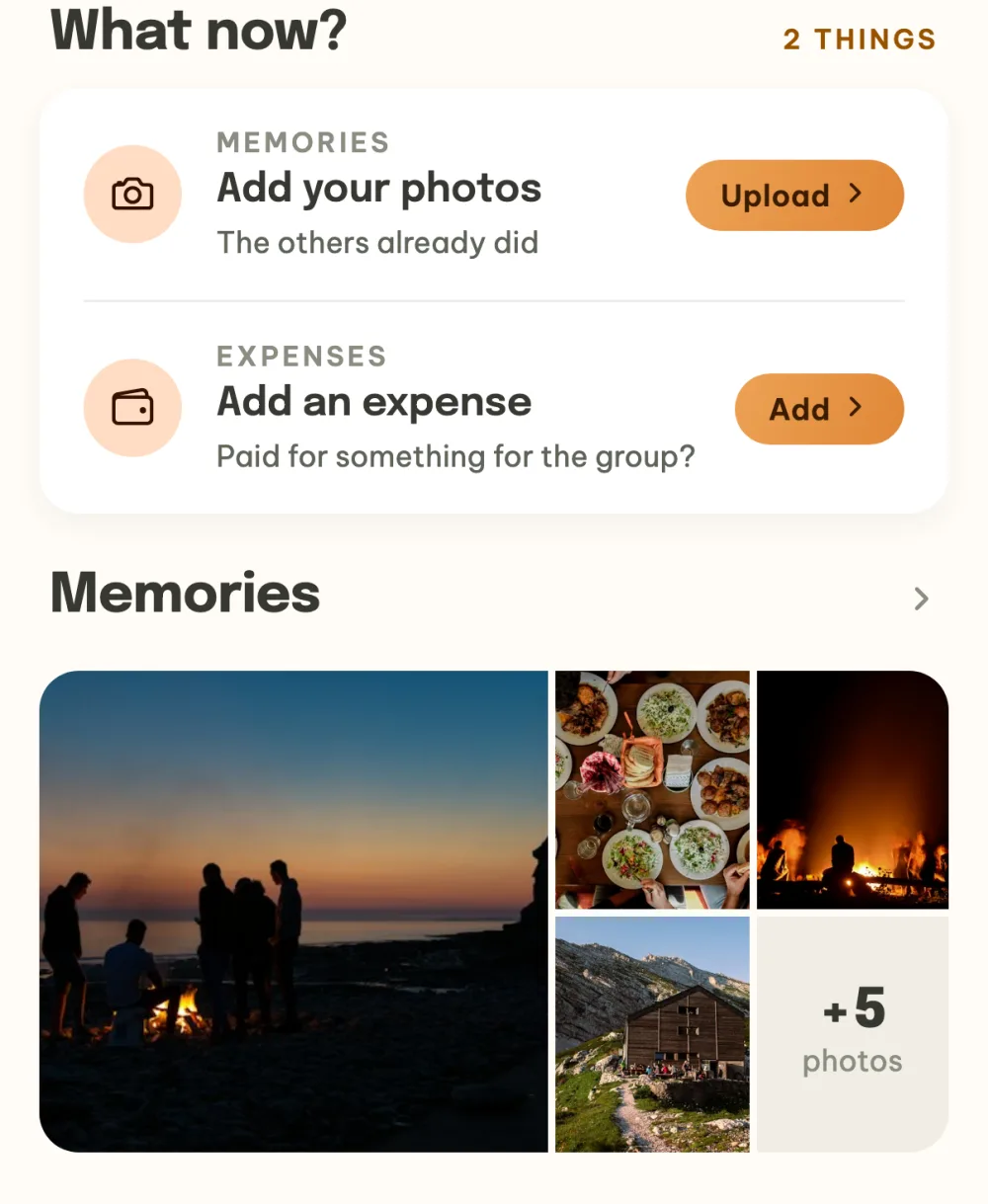
Have the album at hand during the event. Once the event starts, the header shows Living it. From the second day of a multi-day event, the Memories album sits right below the What now? section, which gets the rows Add your photos, once your friends have uploaded something, and Add an expense. After the event the header shows Memories and the What now? section also has Pay your share.
FAQ
How do I write to the others?
The green chat button at the bottom right opens the event chat. When you open the event details, it shows the label Write to the others for a moment, and when you have unread messages, it carries a red number. There's more about the chat in the guide Group chat for your event.
Why don't I see the Still deciding section as the organizer?
The organizer doesn't have it. They see the rows where you're waiting for the others in What now?, because once everyone has voted, they are the one who picks the winner.
When does the weather show up in the details?
When the event has an agreed date and a place or accommodation with a location, and there are two weeks or less to go. During the event, the header has pills with the weather for today and the next days of the event.
How do I see who's coming?
The Who's coming section shows the avatars of the participants, organizers first. A green tick on an avatar means they're coming, a red cross that they're not. Tap it to open the list of all participants.
What's in the menu under the three dots?
The organizer has Event settings, Duplicate event, Start a group chat and Cancel event there, everyone else has Start a group chat and Leave event. How to create an event and repeat it is described in the guide How to create an event and repeat it next year.