 Vyrazíme
Quick poll for friends
Barbecue, stew or the pub? Write a question and a few options, friends vote with a thumb and you pick the winner. Step by step, how to make a poll.
What to have for dinner on Saturday, whether to hire boats, where to go on Sunday: lots of questions around an event only need a quick vote where you can see straight away what is leading.
A poll in Vyrazíme works the way the video shows. You write a question and a few options, friends give a thumbs up or down and you pick the winner. You then find the result in the event details among the things that are agreed.

What Vyrazíme does
- Your own question and options. You word the question your way and add as many options as you need.
- Thumbs up or down. Each option gets its own vote, so you can back several options at once.
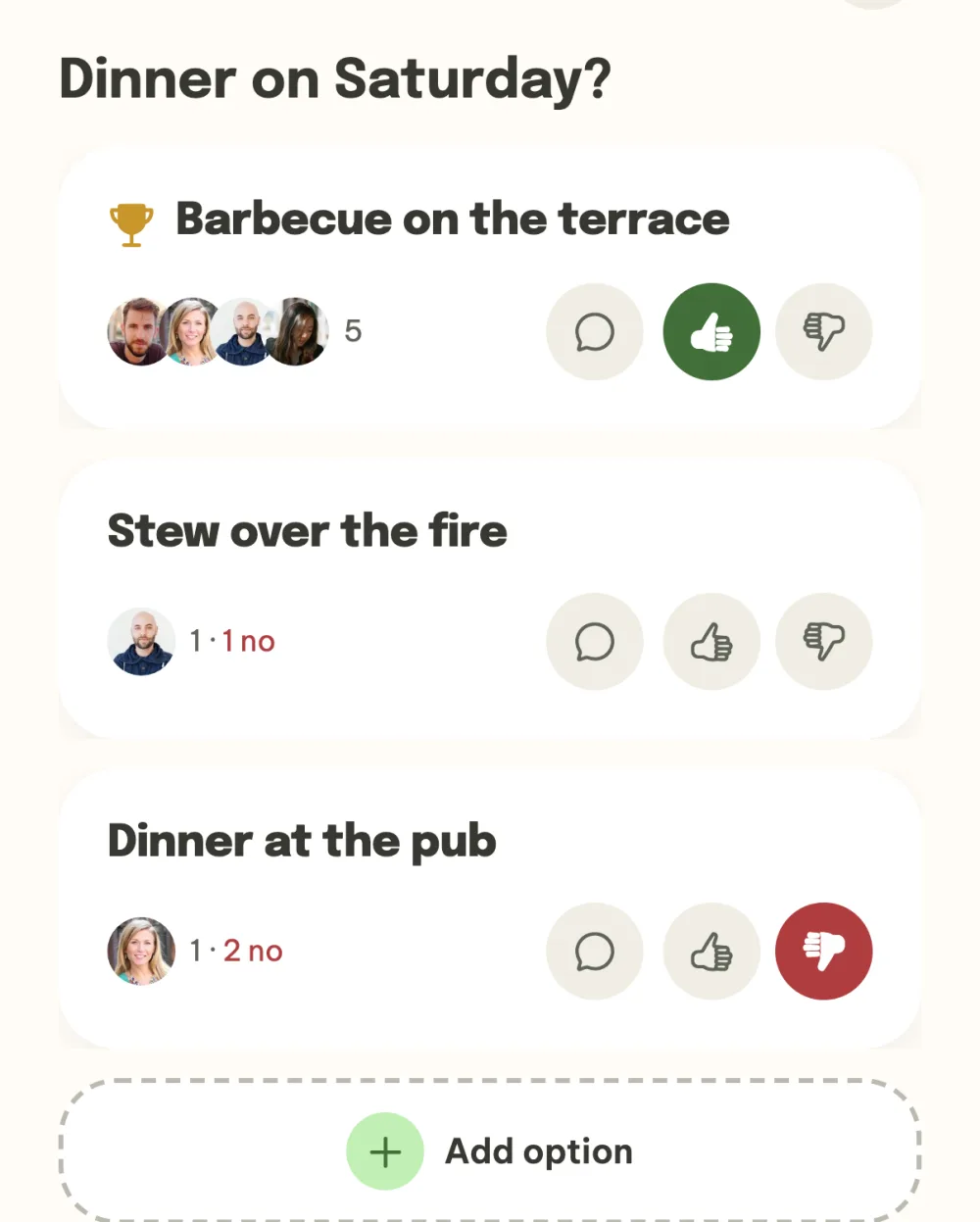
- A trophy for the leading option. The order follows the difference between votes for and against, so you spot the leading option at a glance.
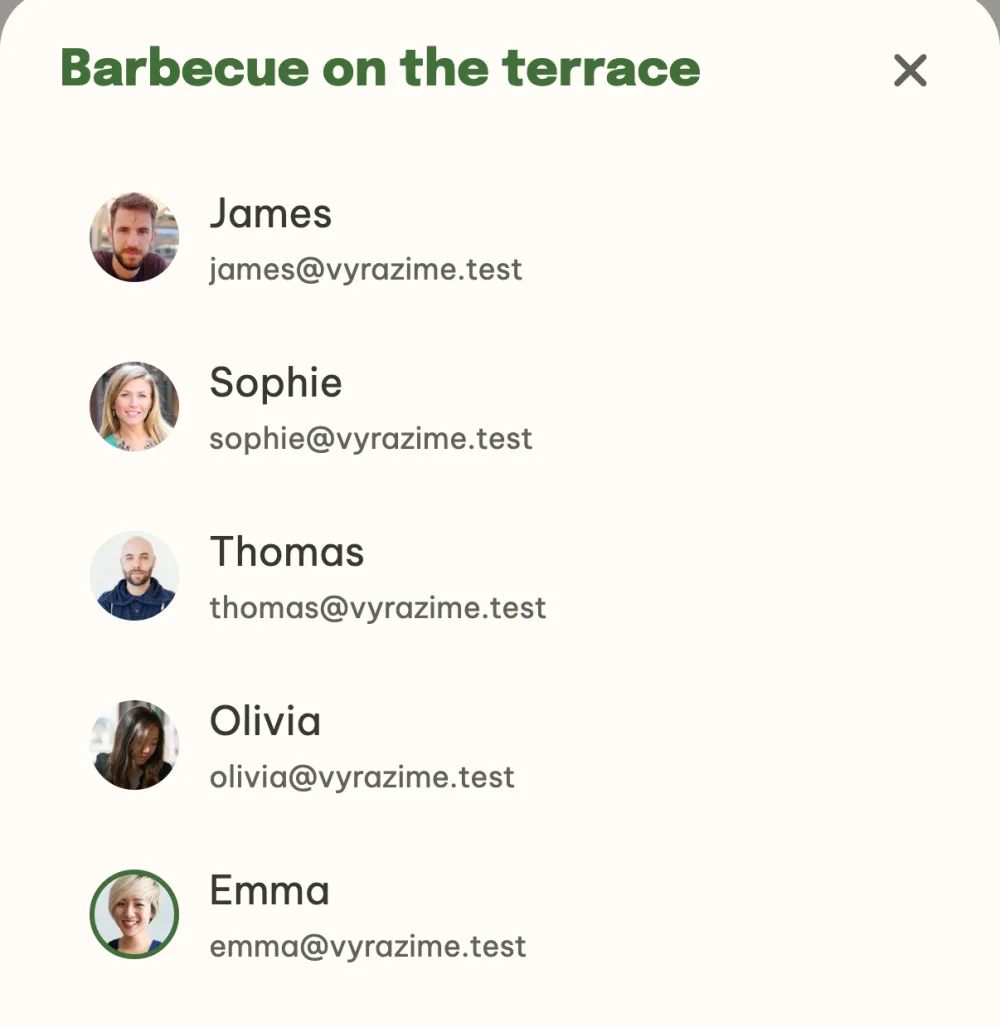
- Who voted for it. Tap the avatars to see the names of everyone who gave a thumbs up.
- Options from anyone. Anyone in the event can add another option, not just whoever created the poll.
- Talk about an option. The speech bubble icon next to an option opens the event chat with a message about that very option.
- Winner and lock. Whoever created the poll, or the organizer, picks the winner and the poll locks.
- In every phase of the event. You can create a poll while planning, before you set off and after the event.
Step by step
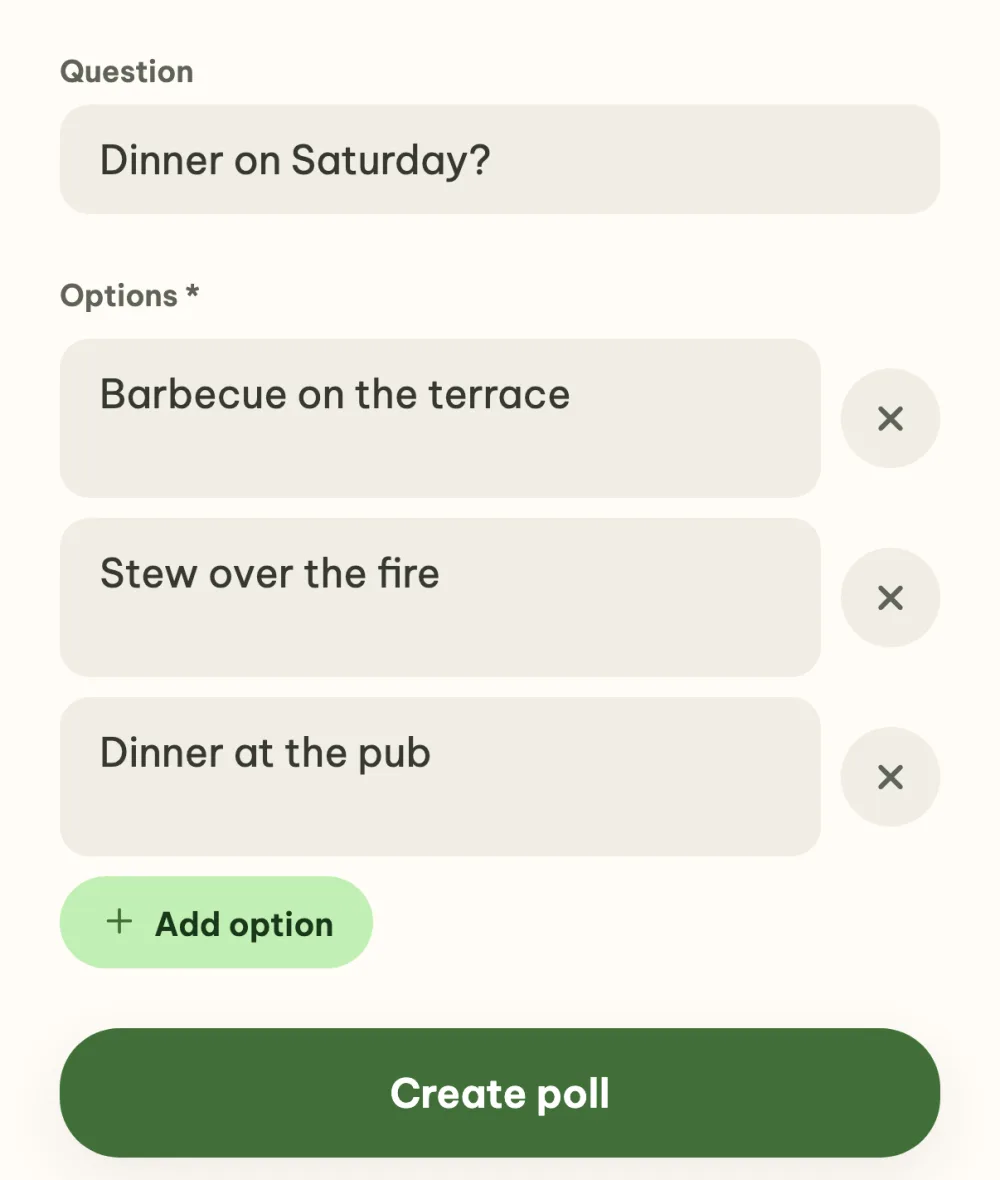
Create a poll. In the event details, tap the Poll tile in the What's next? panel. Write a question and at least two options, and add another row with the Add option button. Create poll takes you straight to the voting.
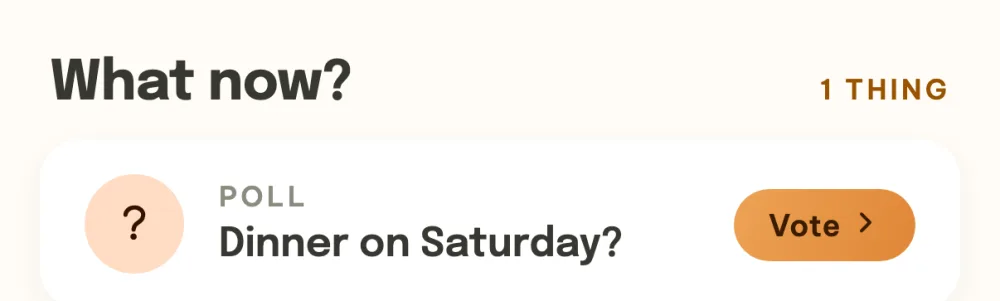
Find the poll in the event details. Until you have voted, it waits at the top in the What now? section under the Poll label with the Vote button. Your friends find it there too. Once you have voted and the others are still to go, it moves to Still deciding.
Vote with a thumb. Give each option a thumbs up or down, on as many options as you like. Next to the avatars is the vote count, for example 1 · 2 no, and the leading option has a trophy. Anyone can add another option with the Add option button below the list.
See who voted. Tap the avatars next to an option and a list opens with the names of everyone who gave it a thumbs up.
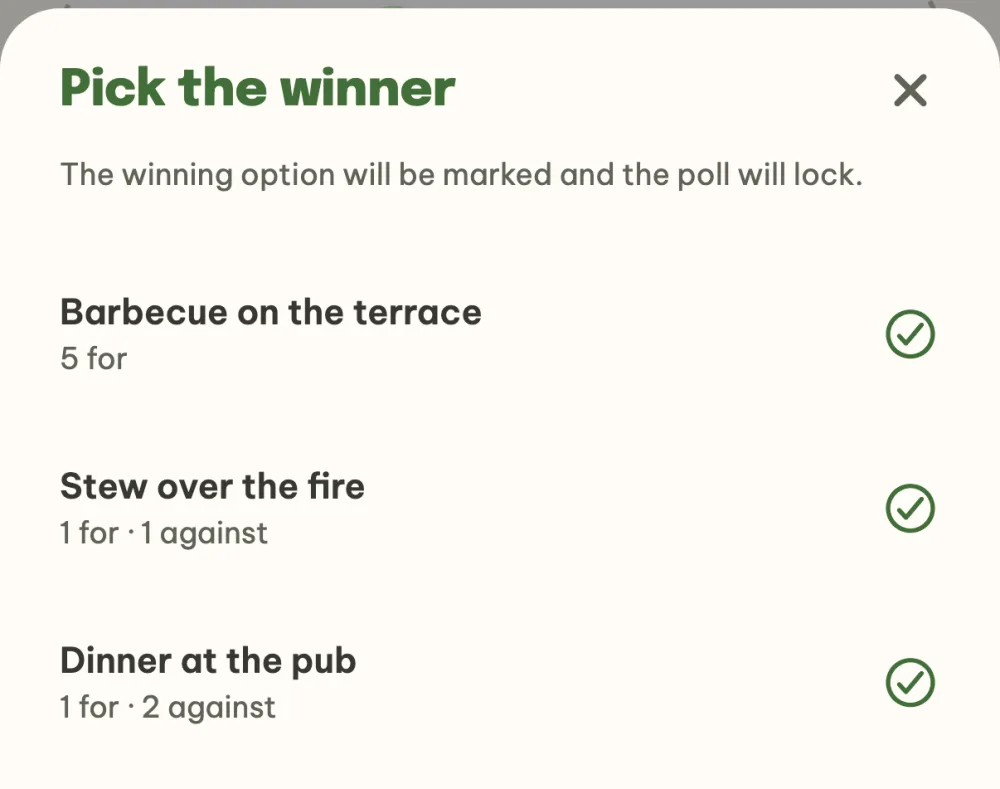
Pick the winner. Whoever created the poll, or the organizer, taps Pick the winner at the bottom. The window shows every option with its votes for and against, you tap one to select it and confirm. The winning option is marked and the poll locks.
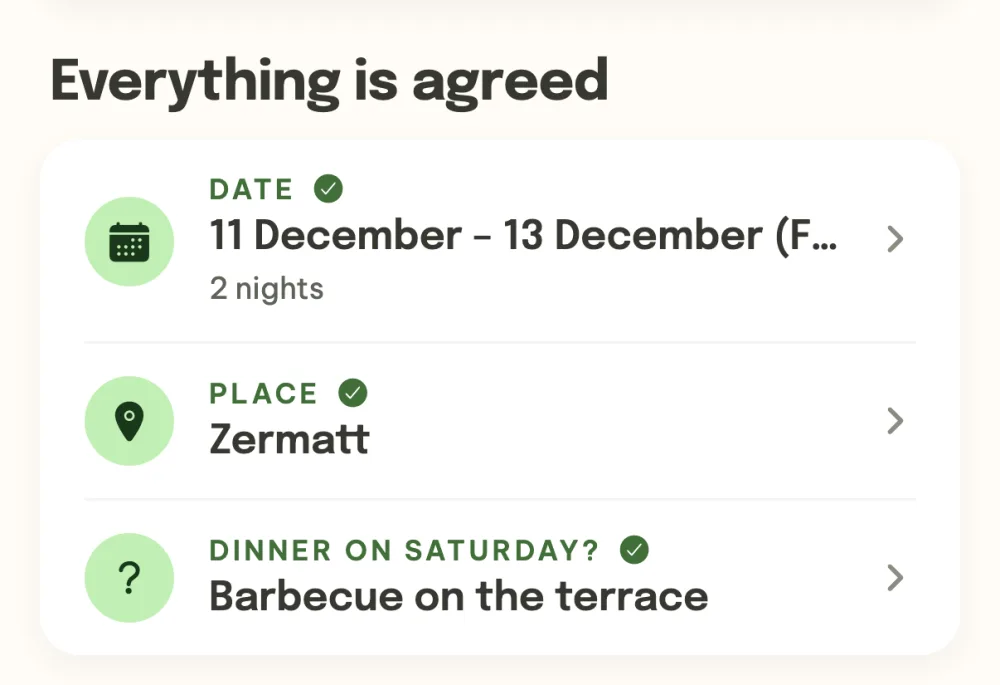
Find the result in the event details. A decided poll sits among the agreed things next to the date and the place: the question at the top as a label and the winning option below it.
FAQ
Who can create a poll?
Anyone in the event, not just the organizer. The only one who cannot is a guest who joined through the shared link without an account. One event can have as many polls as you like.
Can I vote for more than one option?
Yes. Each option has its own thumbs up and down, so you can back everything you like and give a thumbs down where you do not want something.
How do I edit or delete an option?
Swipe left on an option you added yourself, or on any option if you are the organizer. The pencil lets you rewrite its text and the bin deletes it along with its votes.
Can a poll be reopened after the winner is picked?
Yes. Whoever created the poll, or the organizer, taps Reopen below the list and voting carries on. The whole poll is deleted from the menu under the three dots at the top right.
How do we talk about a single option?
Tap the speech bubble icon next to the option. The event chat opens and the message you write belongs to that option. Tapping it takes anyone straight back to the poll.