 Vyrazíme
Group chat for your event
Date plans, a photo of the cabin and your friends' reactions in one thread, where every message knows what it's about. Step by step, how to use the event chat.
A lot of the planning around an event happens in messages: who travels with whom, what you think of the cabin, who brings what. When the chat lives right in the event, you have everything together and every message clearly belongs to something.
In Vyrazíme every event has its own chat, and the video at the top shows it in half a minute. A message written about a date or a place to stay carries a card that leads back to it. Your friends react with emoji and you see who has read a message and who is typing right now.

What Vyrazíme does
- One chat for the whole event. One thread for everyone, opened from the event details with the floating button.
- Messages with a card. A message written about a date, place, accommodation, poll, task or file has a card at the top that leads back to it.
- Automatic messages. The app posts in the chat by itself about a new date, place or accommodation suggestion and about confirmed attendance.
- Photos and files. You add several photos and files to a message at once and they go out as one album.
- Reactions and replies. You react to a message with an emoji and swipe it to the right to reply straight away.
- Who has read it and who is typing. Ticks on your messages show who has already read them, and above the message box you see who is typing right now.
- Private messages and groups. Besides the event chat, you can write to a single friend or start a group that lives on outside the event.
Step by step
Open the event chat. In the event details tap the green floating chat button at the bottom right. Messages run from the oldest downwards. The thin grey lines are automatic messages from the app, for example about a new date suggestion, and tapping one takes you straight to the suggestion.
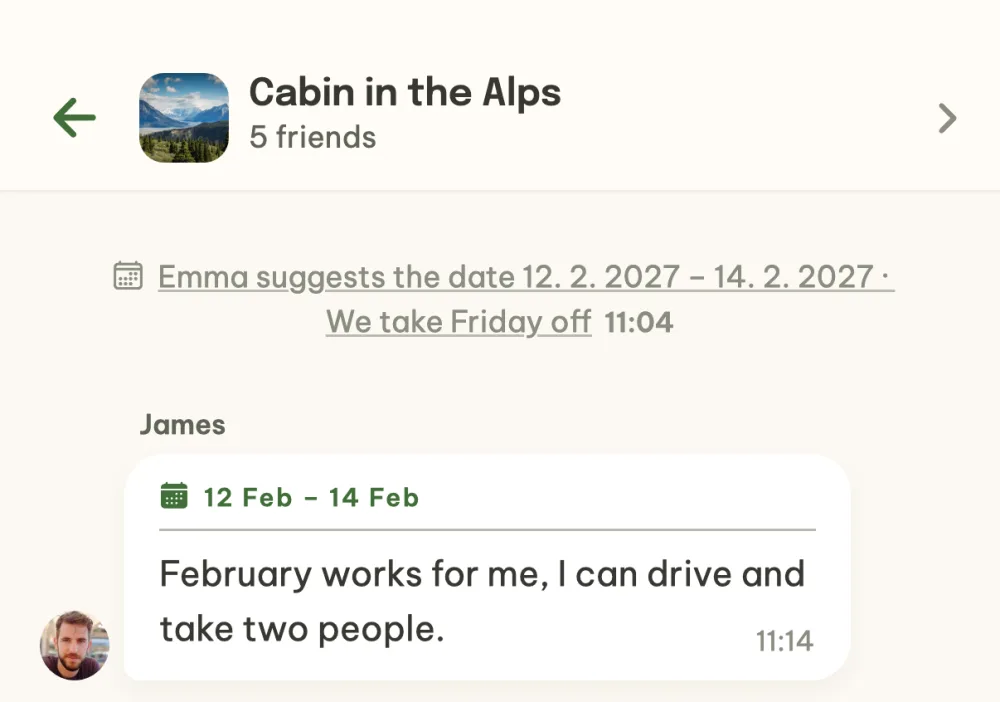
Write about something specific. On a date, place, accommodation or poll option tap the speech bubble icon, or use the floating chat button on the screen you want to write about. What the message is about gets pinned above the message box, and the message you send then carries a card that takes anyone back to it. Remove the pin with the cross.
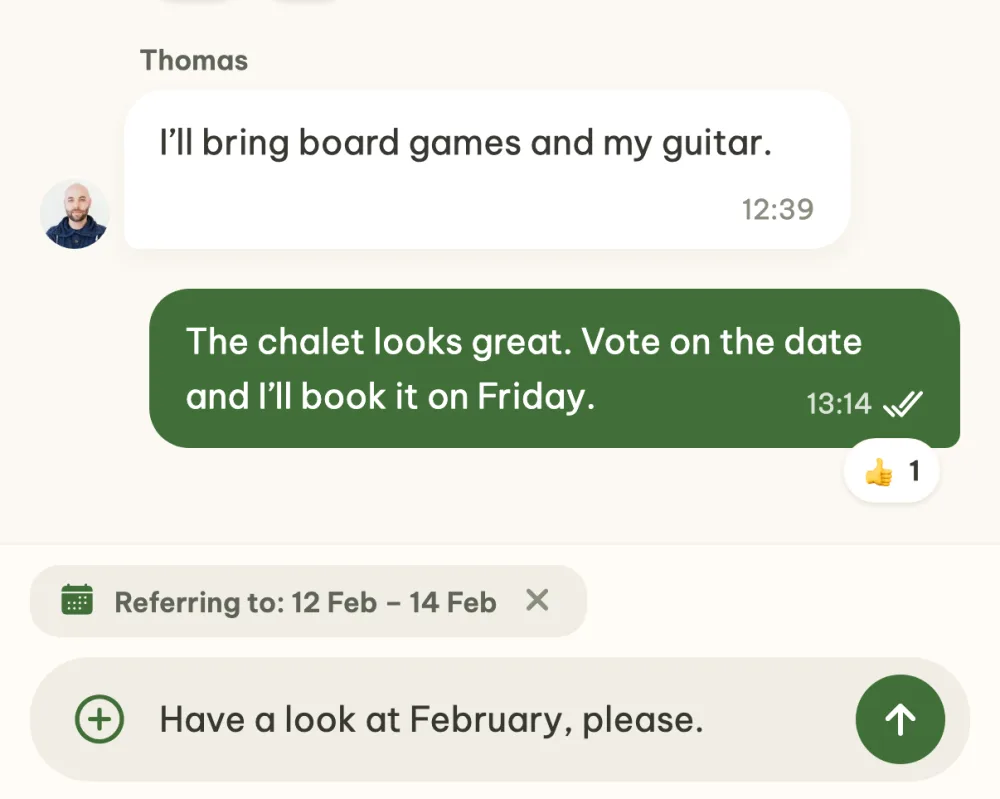
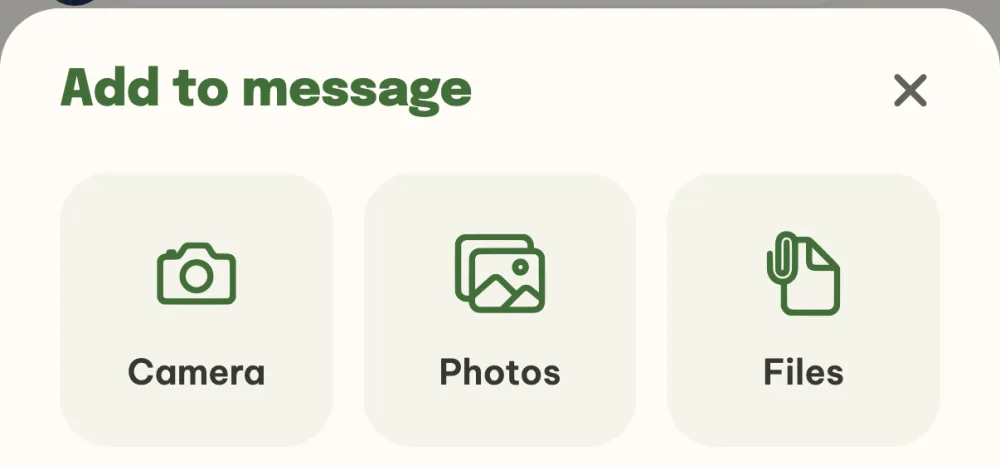
Send a photo or a file. Tap the plus on the left of the message box and choose Camera, Photos or Files. You can pick several photos and files at once. The attachments first appear above the message box, you add some text and send it all as one message. On a computer with a wide window there is a paperclip instead of the plus, and you can also paste an image from the clipboard.
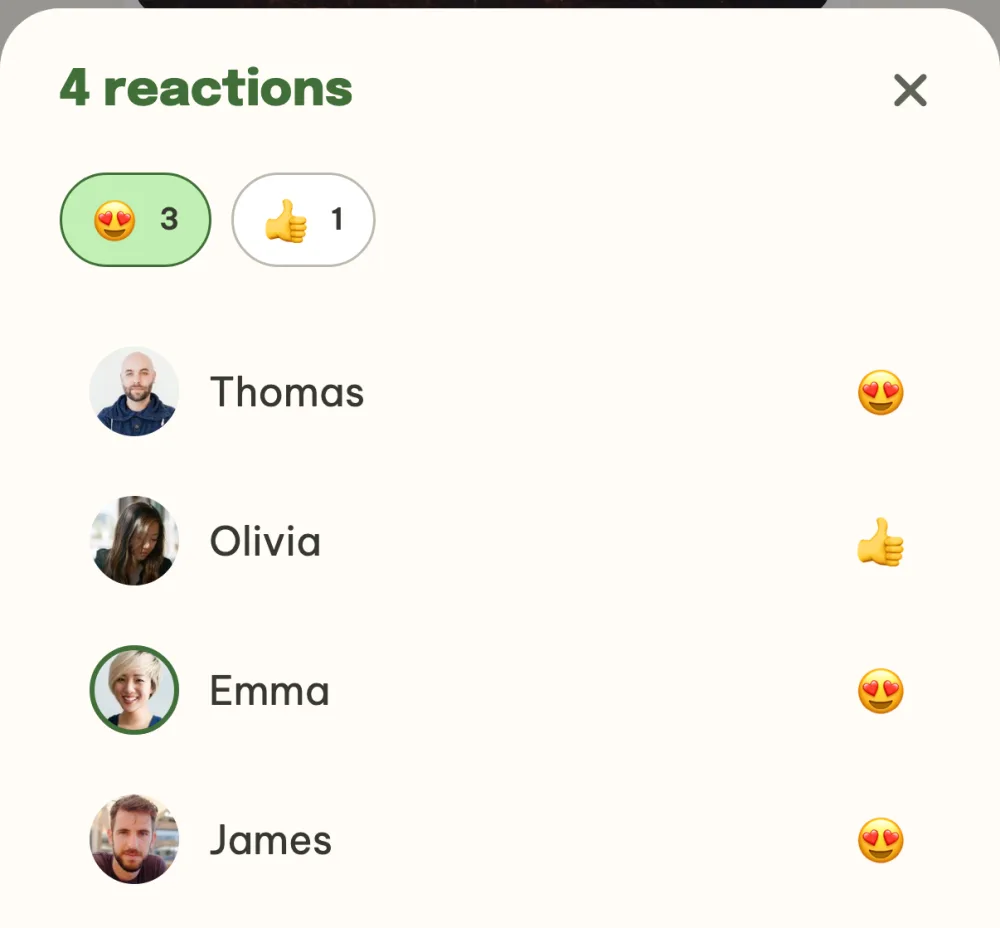
React to messages. Hold your finger on a message and pick an emoji from the menu, the plus at the end opens all the others. Reactions sit below the bubble and tapping them shows who reacted how. Swipe a bubble to the right to reply to it straight away.
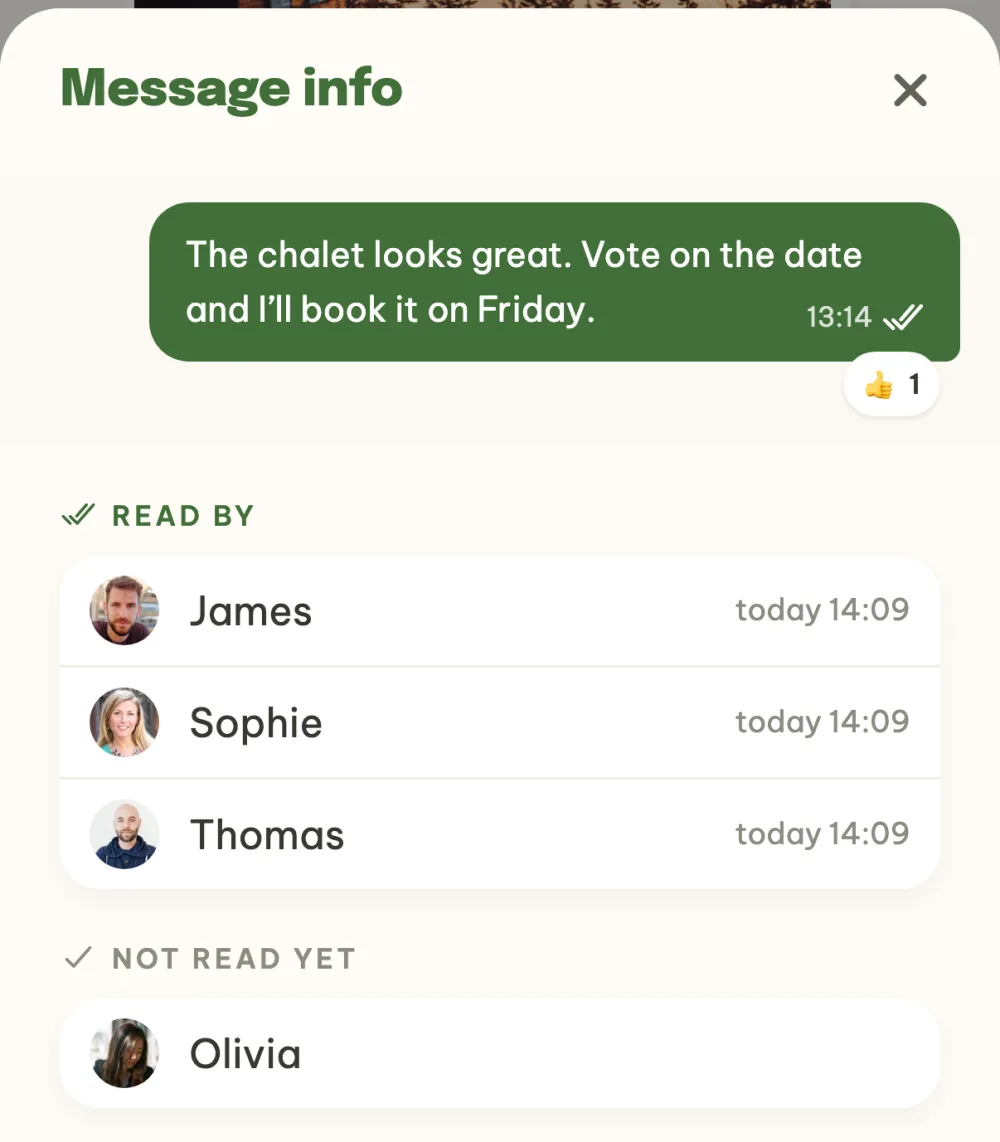
See who has read your message. Your message has one tick while nobody has opened it yet, two when someone has read it and two blue ones when everyone has read it. Hold your message and choose Message info: you see who has already read it and who hasn't yet.
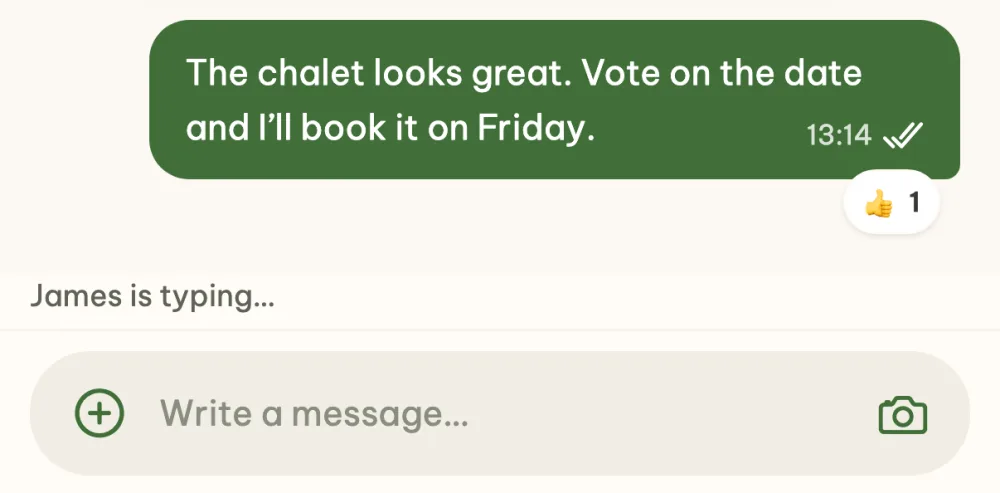
See who is typing. When someone is tapping out a reply, their name and is typing… appear above the message box. Anyone who has the chat open right now has a green dot by their avatar.
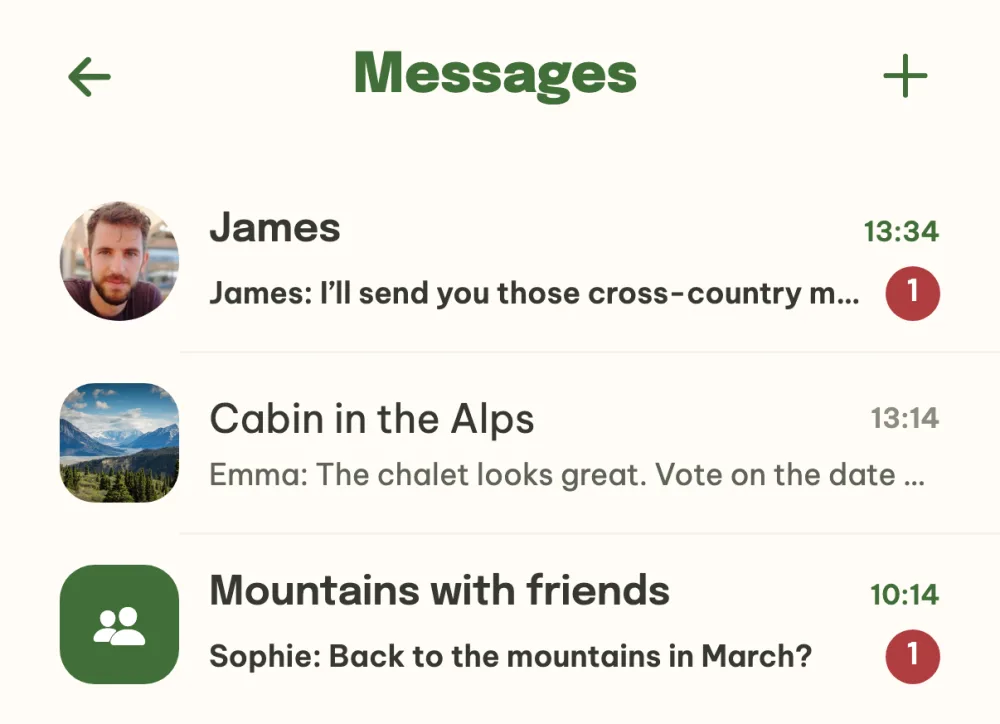
Find all your conversations in Messages. Messages has event chats, private messages and groups together, and unread ones have a red number. With the plus at the top right you write to one friend or start a new group.
FAQ
Can I message a friend privately?
Yes. Tap their avatar anywhere in the app and choose Send a message, or tap the plus in Messages. You can write to friends and to people you share an event with.
What is a group chat for?
A group is a conversation for several people that doesn't depend on an event, so you can chat even when you aren't planning anything. Start one in Messages with the plus and New group, or in the event details in the menu under the three dots with Start a group chat, where the people in the event are already selected. Everyone in a group has the same rights.
Can I send something to the chat from another app?
On your phone, yes. When you tap Share in maps, the browser or another app and choose Vyrazíme, the app asks where to send it and fills the text or link into a message for you. You send it yourself, with more text if you like. Photos and videos shared this way go straight to the event album, as the guide How to share holiday photos with friends describes.
How do I edit or delete my message?
Hold it and choose Edit or Delete. For the others, a deleted message changes to This message was deleted.
Is a half-written message lost when I leave the chat?
No. The text you started and any attachments you added wait for you in the box until you close the app completely.