 Vyrazíme
How to share holiday photos with friends
A shared album for your event where everyone uploads photos and videos and the others like, comment on and download them. Sorted by day and by who took them.
After a holiday everyone has photos on their own phone. The nicest thing is to have them all together once you are back and to know who took what.
In Vyrazíme every event has its own Memories album, as the video above shows. Everyone uploads photos and videos from their phone. The others browse them by day or by person, like and comment on them, and anyone who wants to downloads them.

What Vyrazíme does
- A shared album for the event. Photos and short videos in one album, visible only to the people in the event.
- Upload from your phone. You pick several photos and videos at once and the app uploads them. Whatever is already in the album gets skipped.
- By day and by person. Photos are sorted by when they were taken, not by when someone uploaded them. In the People view you see who took what.
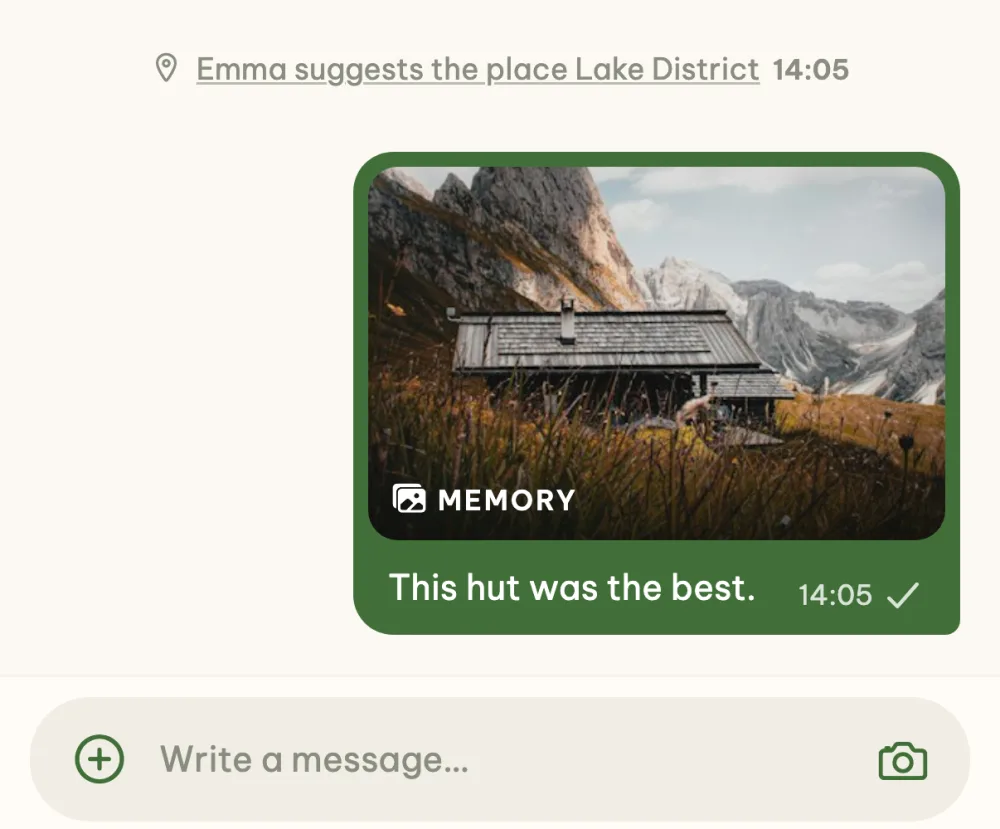
- Likes and comments. A comment on a photo shows up in the event chat together with a preview of the photo.
- Download and share. You save one photo or a whole selection to your phone or send it on. The photos keep the date they were taken, so in your gallery they sit among your other photos from that time.
- Notifications about new photos. When someone adds photos, the others get one combined notification. The morning after the event a reminder arrives to upload yours.
Step by step
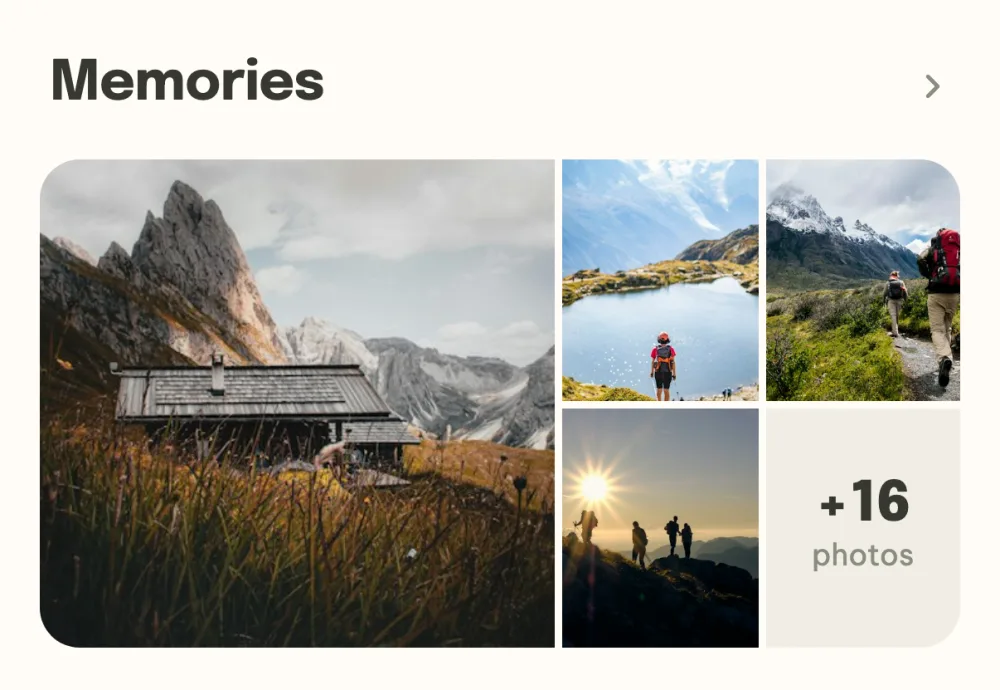
Open Memories. While the event is happening or once it is over, its details have a Memories card. Tap it to open the album. Before the event, Memories is a tile in the What's next? panel.
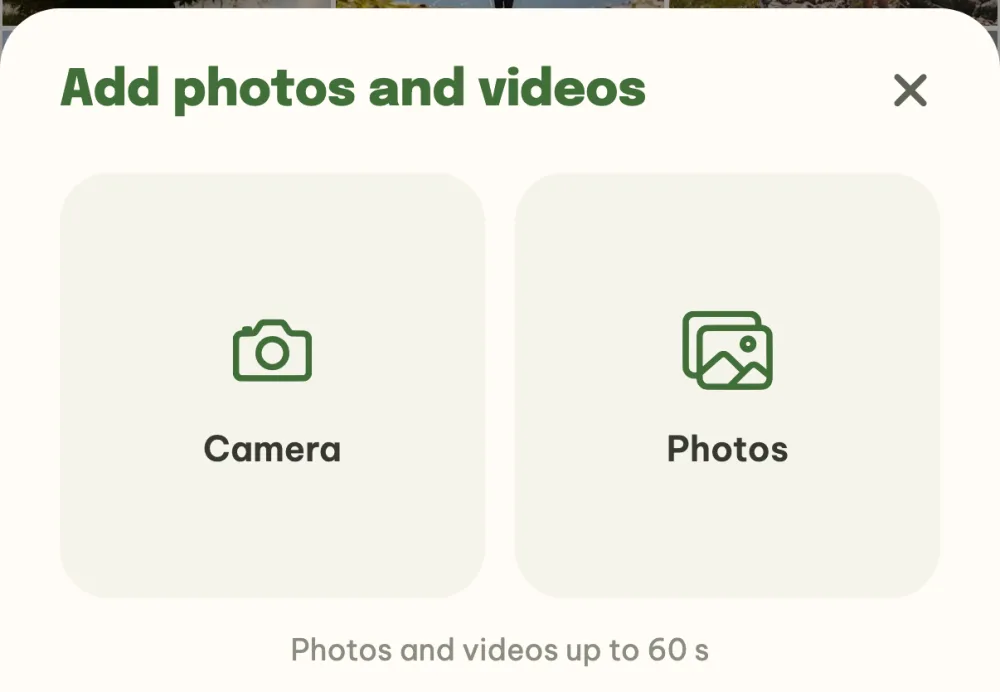
Upload photos and videos. Tap Add photos and choose Camera or Photos. You can pick several items at once, videos up to 60 seconds. A bar at the top shows the progress and you can keep using the app in the meantime, just leave it open.
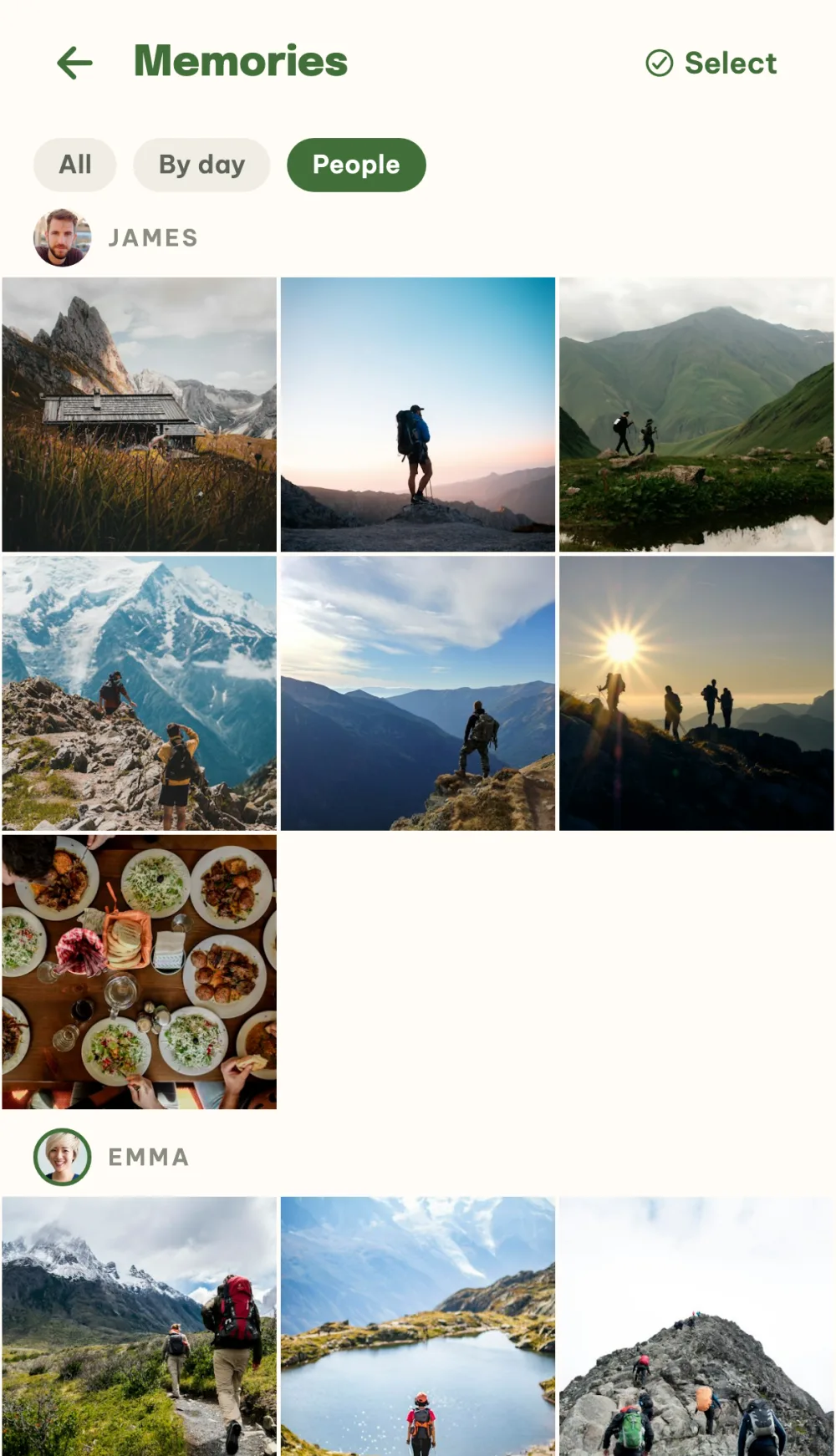
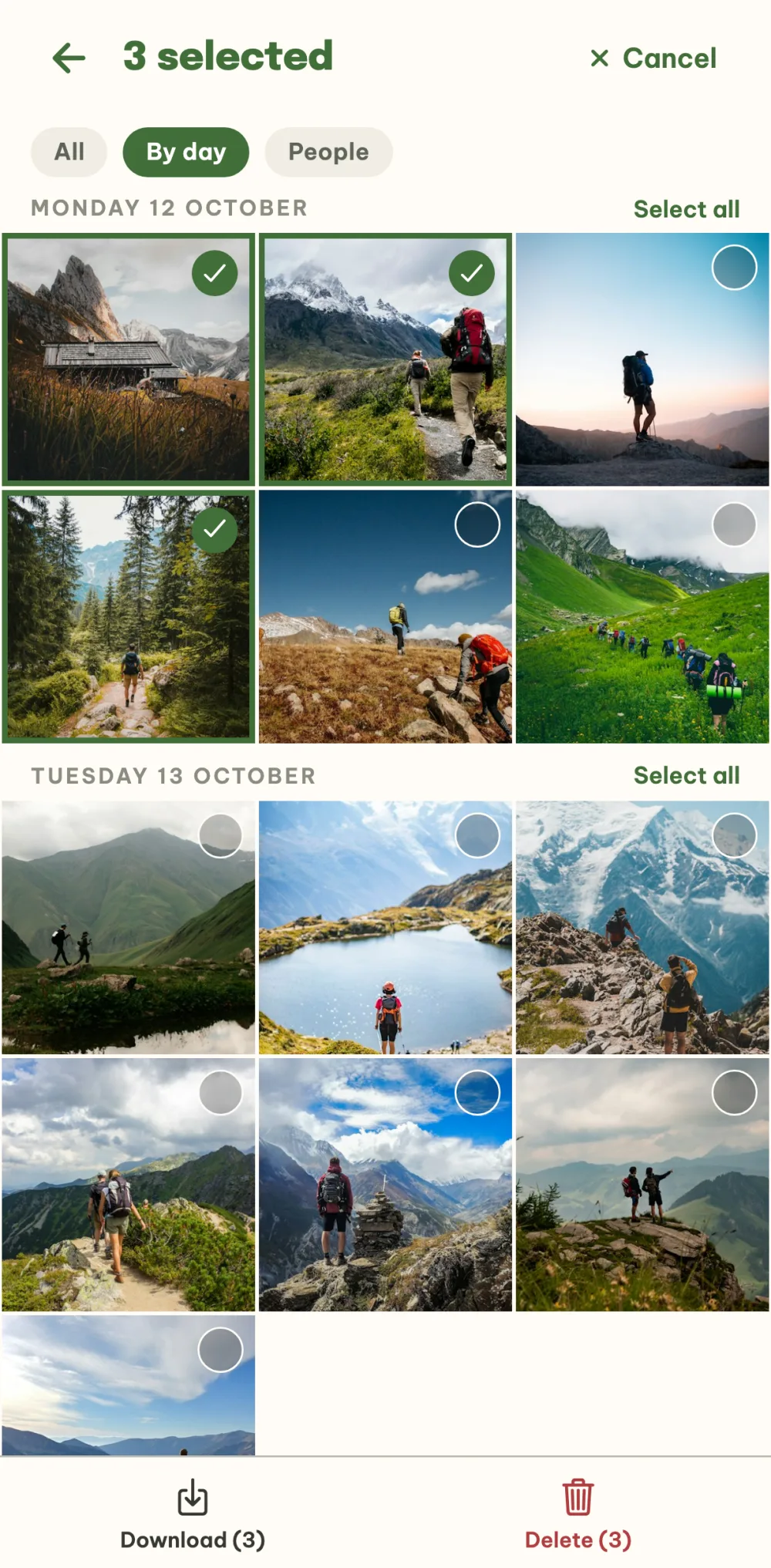
Browse by day or by person. With the switch above the grid you choose All, By day or People. By day sorts the photos by when they were taken, People shows who took what.
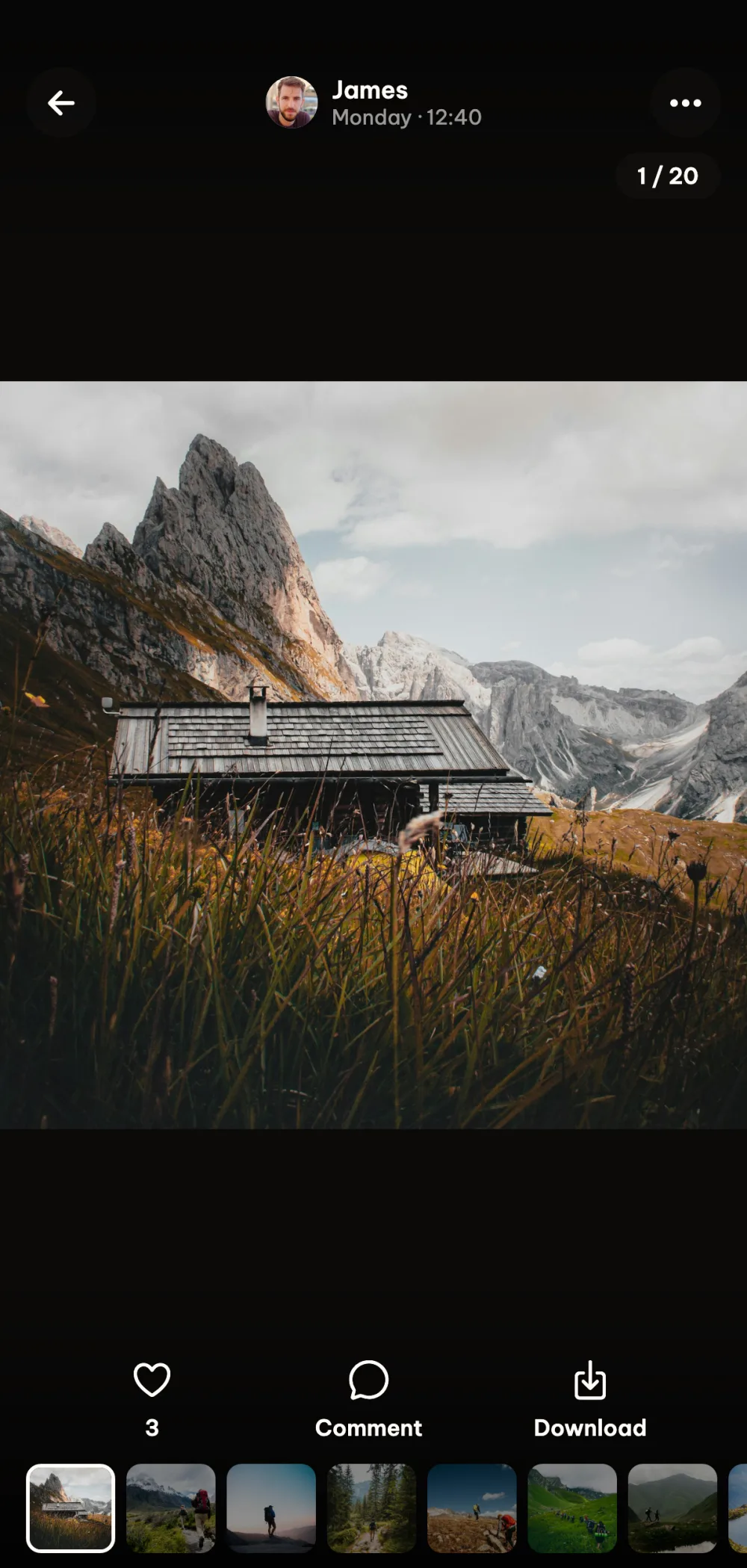
Like the photos that turned out well. Tap a photo to open it full screen. At the bottom there is Like with the number of likes, Comment and Share. You swipe sideways between photos.
Comment on a photo. Comment opens the event chat with the photo as context. The message shows up in the chat with a preview of the photo, and tapping it takes the others back to the photo.
Download the photos. Tap Select and mark the photos, or tap Select all next to a day or a person. On an iPhone you save them to Photos through Share, on Android Download saves them to the Gallery, and in a browser they download as a single ZIP.
FAQ
How many photos fit in the album?
Whoever creates events gets 100 free photos shared across all their events, and a video counts as 10 photos. Nothing is deleted because of the limit, you just can't upload more. The album of a particular event can be expanded to 500 photos with the Expand for free button.
Can people outside the event see the album?
No. Memories are private to the people in the event.
Does the app make sure I don't upload the same photo twice?
Yes. When you pick a photo or video from your gallery that you have already uploaded to the album, the app skips it and tells you how many it skipped. It checks this on your phone.
Who can delete photos?
Everyone can delete their own photos, and the organizer can delete other people's too so they can manage the album. You find Delete photo in the photo viewer under the three dots.
Can I upload videos too?
Yes, videos up to 60 seconds and 150 MB. In the album they show their length in the corner and in the viewer they play by themselves.