 Vyrazíme
How to plan a day-by-day itinerary for a trip
Journeys, nights and outings day by day on one timeline, with a vote on where to stay and a map of the whole route. How to plan a road trip with friends.
A road trip or a trip with several stops is best planned day by day: when you set off, where you sleep and what you do where. With the whole journey in one place, each of your friends knows what lies ahead.
In Vyrazíme that is what the itinerary is for, and the video above shows it. Journeys, nights and outings sit on a day-by-day timeline, you vote on the stay with a thumbs up and the organizer confirms the winner. In the event details you then see what's coming up next and a map of the whole journey.

What Vyrazíme does
- A day-by-day timeline. All items sorted by date, from the journey there to the journey home.
- Three kinds of items. A trip (train, plane, bus, car, boat or on foot), a stay and anything else, such as an outing, a tour or a car rental.
- Places from the search. You pick where from, where to and where an outing takes place from the map, and the item details then show a map, with the route for a trip.
- Voting on the stay. Anyone adds an accommodation option, the others give it a thumbs up and the organizer confirms the winner. Trips and outings go straight in as agreed.
- A flight by its number. For a plane, the flight number is enough and the app fills in the airports and times, then shows the live status on the day of the flight.
- Files for an item. You attach a ticket, an entry pass or a booking confirmation right to the item, where everyone finds it.
- A map of the whole journey. All places in the itinerary as numbered points in timeline order, below the timeline and in the event details.
- The next item. In the event details you see what's coming up next.
- Messages in the chat. A new option and a confirmed item each send a message to the event chat, so everyone notices.
Step by step
Turn on the itinerary. The organizer turns on the itinerary with the Itinerary tile in the What's next? panel in the event details and confirms it with the Turn on button. It replaces the Accommodation section, and any accommodation proposals and votes already in the event carry over into it. If you are not the organizer, you can message them in the chat from the tile.
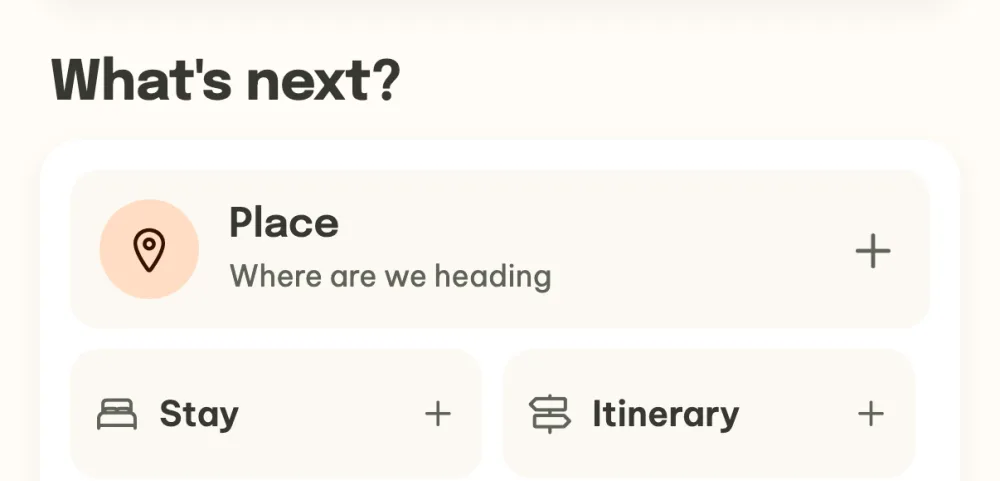
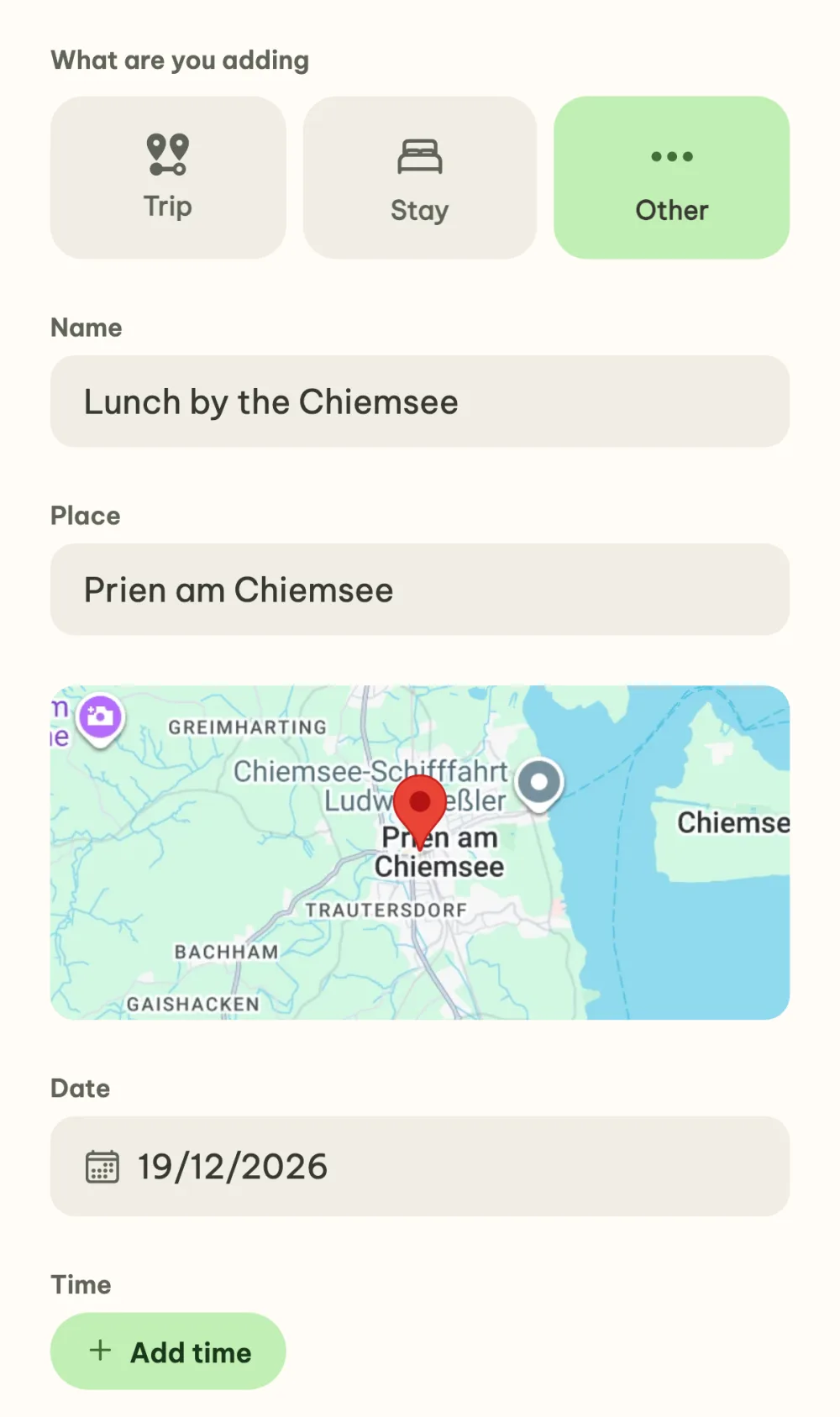
Add an item. On the timeline, tap the plus at the bottom right and under What are you adding pick Trip, Stay or Other. For a trip you fill in how you are travelling, from where, to where and when, for anything else a name, a place and a date. The date is prefilled where the timeline currently ends, and with the Add to itinerary button the item is on the timeline straight away.
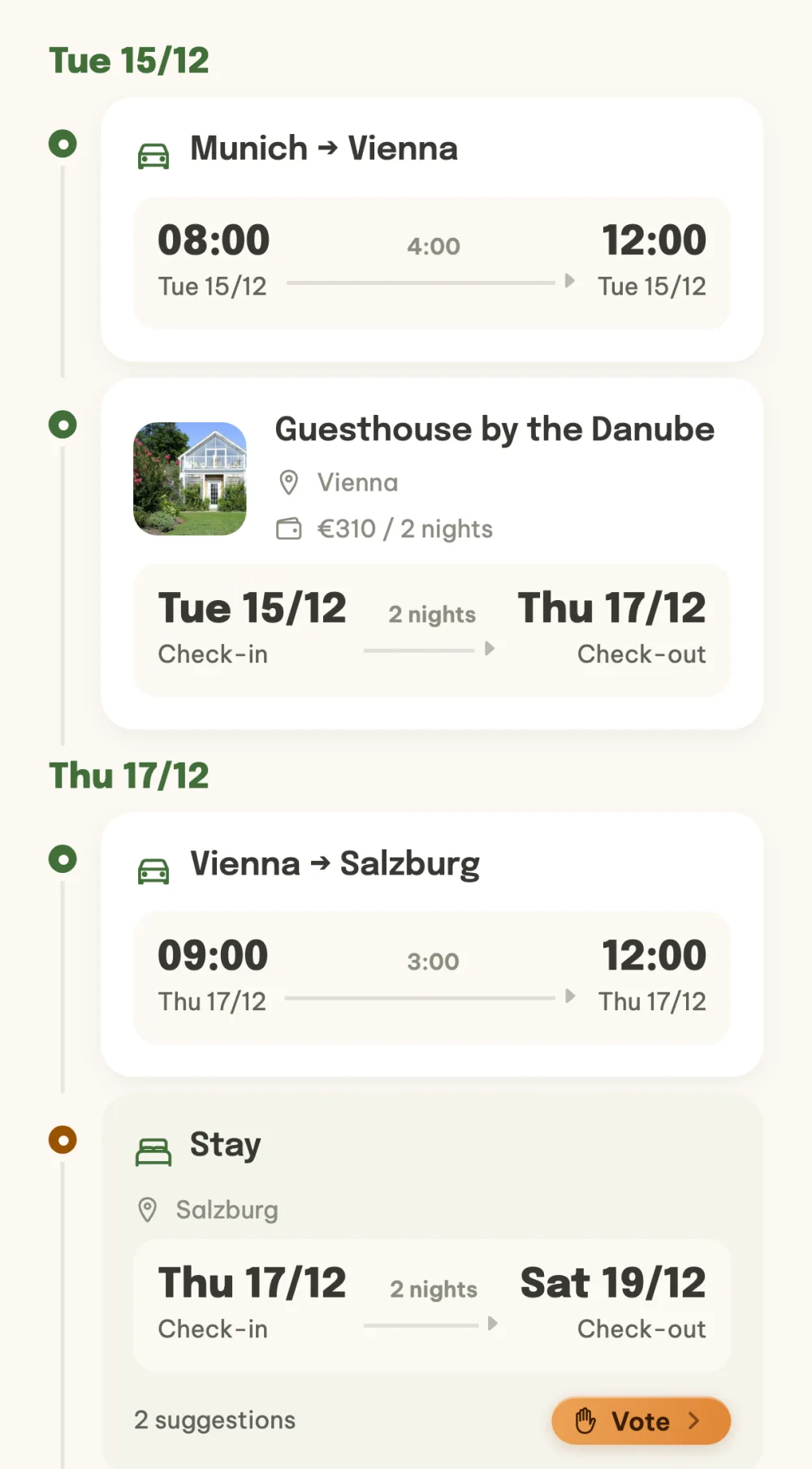
Go through the timeline day by day. Items are sorted by day from top to bottom. Agreed ones have a white card with times and details, and a stay that is being voted on shows the number of suggestions and the Vote button. Below the timeline is a map of the whole journey with numbered points.
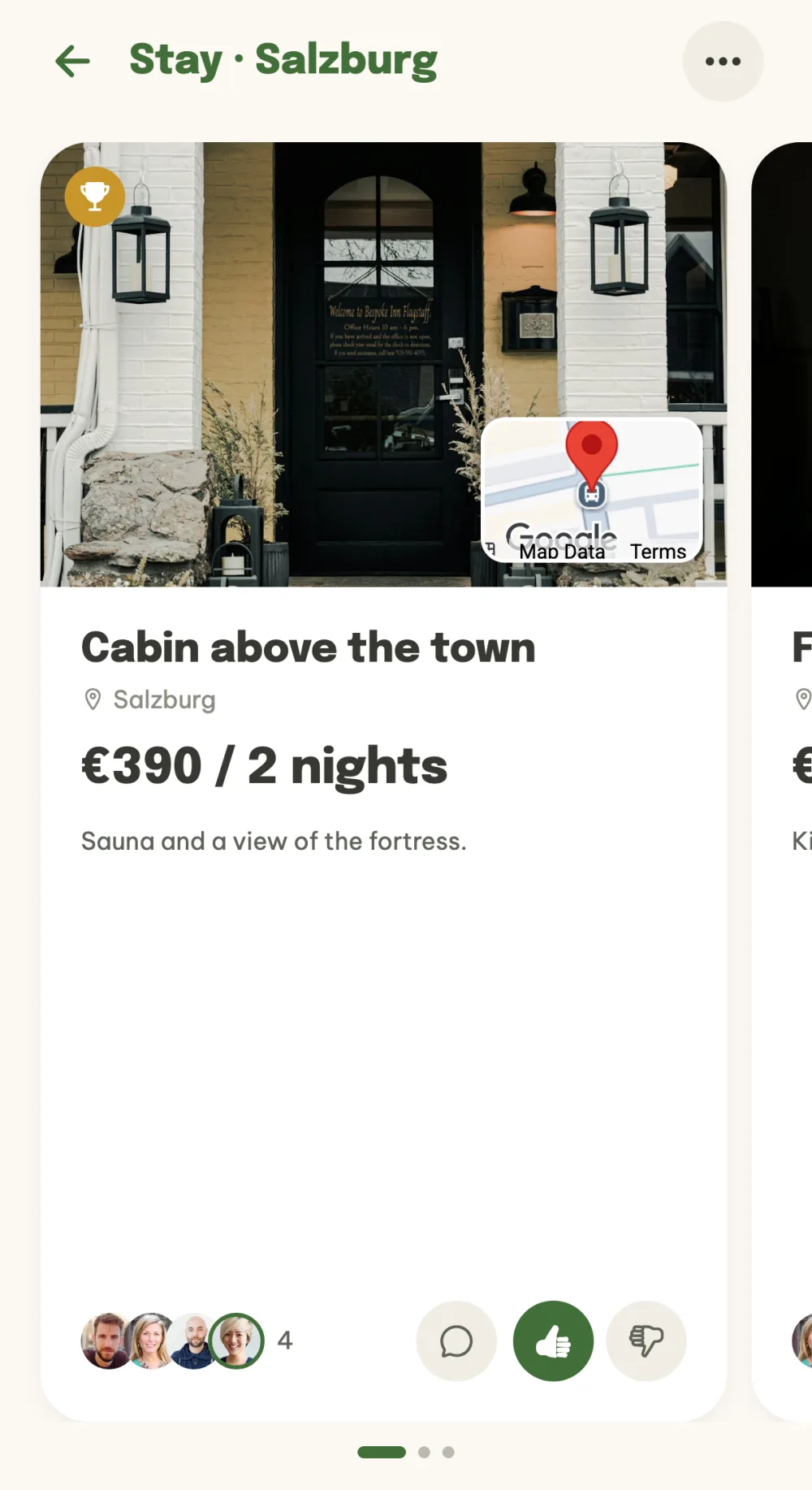
Vote on the stay. For a stay, you first fill in from when to when and roughly where you will sleep, and carry on with the Continue to stays button. Then you add accommodation options, by hand or from a search on Booking and Airbnb, and vote with a thumbs up. Finally the organizer taps Pick final and confirms the winner with the Confirm final option button.
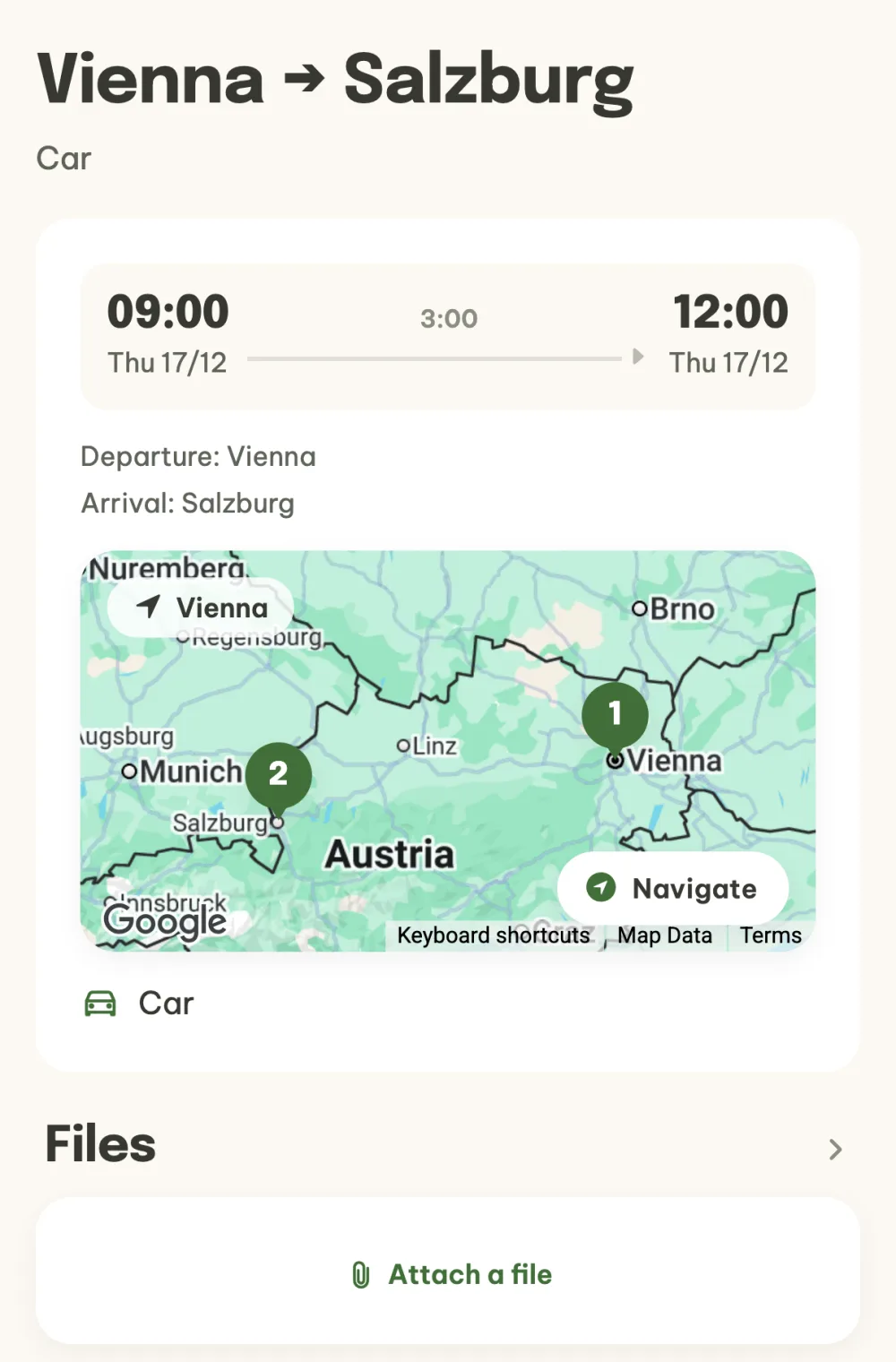
Attach files to an item. Tap a trip or an outing on the timeline to open its details with a map, and for a trip also the route and the Navigate button. In the Files section you attach a ticket, an entry pass or a voucher with the Attach a file button. The file is also saved to the event's shared files.
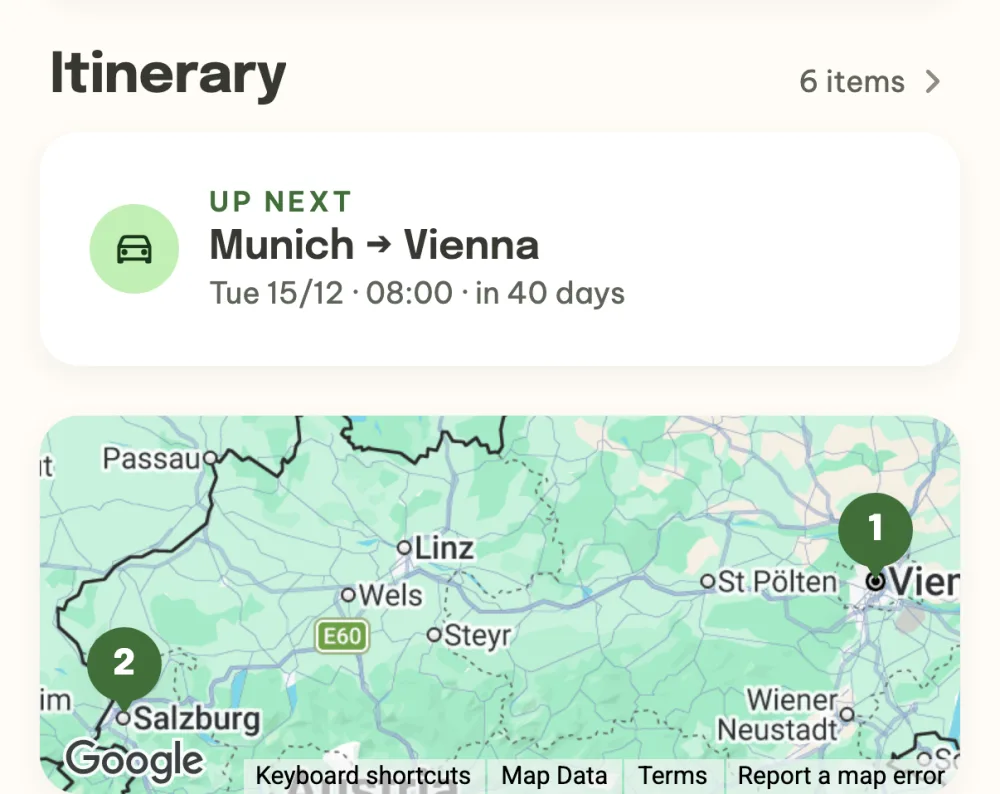
Follow what's coming up next. In the event details the itinerary has its own section. Under the Up next label you see what lies ahead, when and in how many days, and below it is a map of the whole journey. You also find confirmed stays as accommodation among the agreed things.
FAQ
Who can add to the itinerary?
Anyone in the event. They add a trip, an outing or a stay option, while only the organizer can turn the itinerary on and cancel it. A trip or an outing can be edited or deleted by whoever added it and by the organizer.
Do we vote on everything?
Only on the stay, where there are usually several options. Trips and outings go straight in as agreed: whoever knows how you are travelling enters it, and the others can talk it over in the chat.
What happens to the accommodation already in the event?
When the itinerary is turned on, the accommodation proposals and votes carry over as the first stay on the timeline. If the organizer cancels the itinerary in the menu under the three dots, the accommodation returns to the event as it was when the itinerary was turned on.
How do I add a flight?
In a new item pick Trip and Plane, type the flight number and tap Find flight. The app fills in the airports and times and shows the live status on the day of the flight. The guide Flight with friends covers it in detail.
Can I add a tip from Points of interest to the itinerary?
Yes. In the details of a place in Points of interest, tap Add to itinerary, the app prefills the name, place, link and note, and you add the date and time. The guide Places to visit together shows how to collect tips.