 Vyrazíme
Flight with friends: flight number and live status
Enter the flight number and the app fills in the airports and times, then shows delays, gate and arrival on the day. Everyone sees the same status.
A shared flight is the start of every bigger trip with friends. When everyone sees the same flight plan and the current status, you meet at the airport at the right gate.
You add the flight to the itinerary by its number, as the video shows, and the app fills in the airports and times. On the day of the flight the card shows whether you are on time, which gate you leave from and when you land. When the departure moves or the gate changes, everyone in the event sees it.

What Vyrazíme does
- A flight by its number. You enter the flight number and the app fills in the departure and arrival airports, the times and a map of the route.
- Live status on the day of the flight. From three hours before departure until an hour after arrival, the card shows whether you are on time, delayed or already in the air.
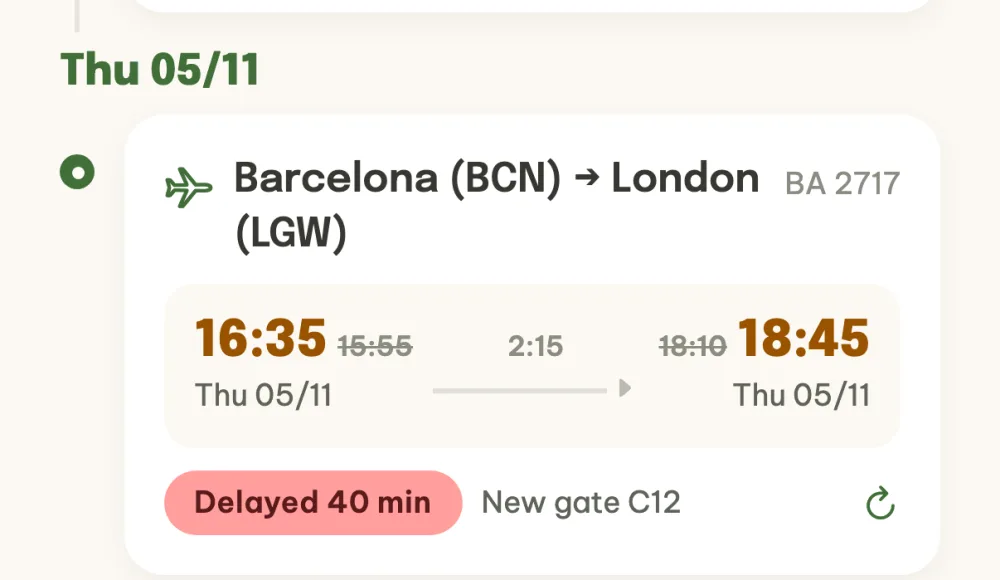
- The new time at a glance. A moved departure or arrival is large and in colour, with the scheduled time crossed out next to it.
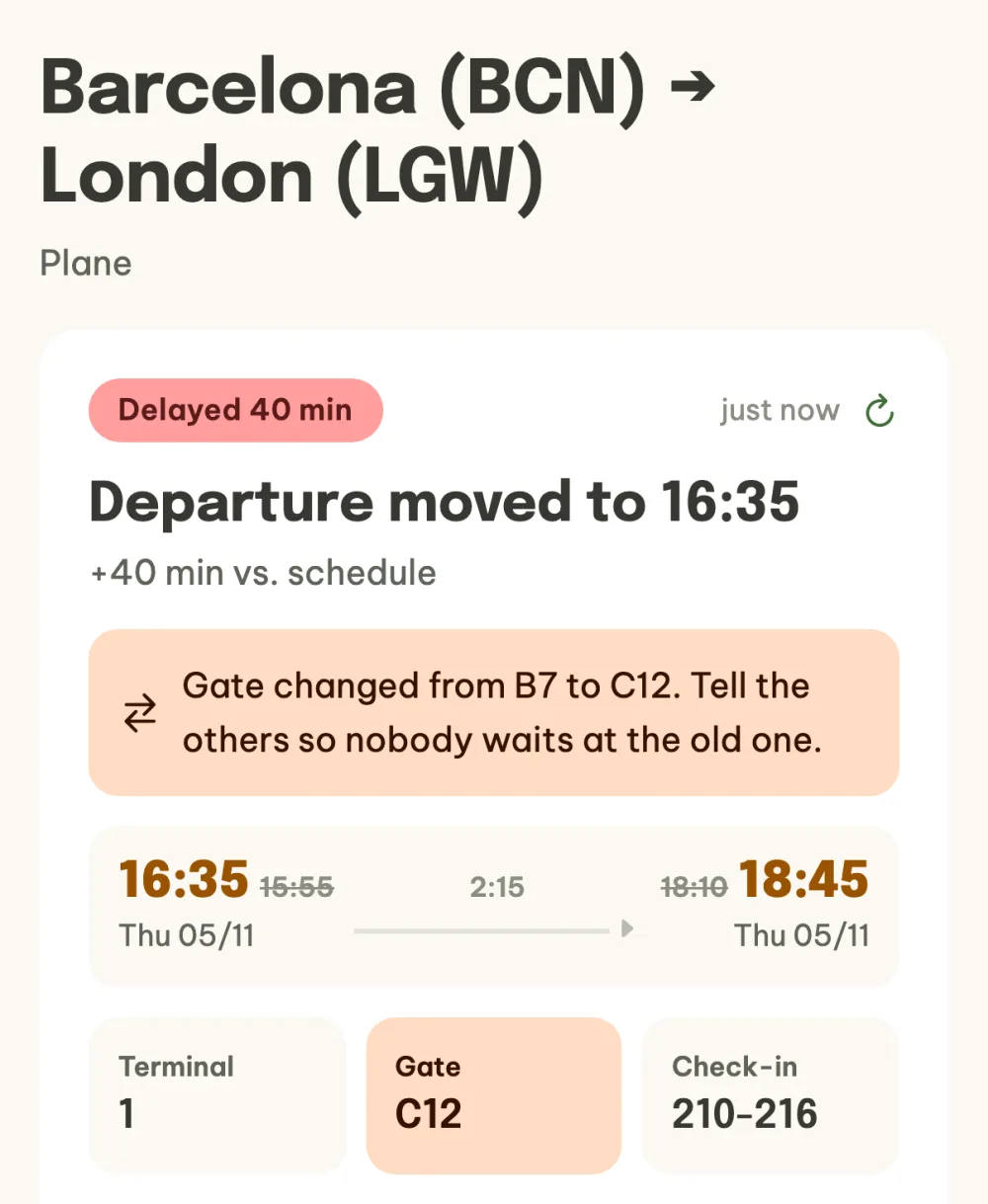
- Terminal, gate and check-in. The flight details have Terminal, Gate and Check-in tiles, and after arrival the baggage belt.
- Gate change alert. When the gate changes, the app highlights it in orange so everyone knows.
- One status for everyone. The status anyone in the event loads is visible to the others too.
- The flight in the event details. The next item in the itinerary carries the flight status with an icon and, during the flight, a bar showing how far along you are.
Step by step
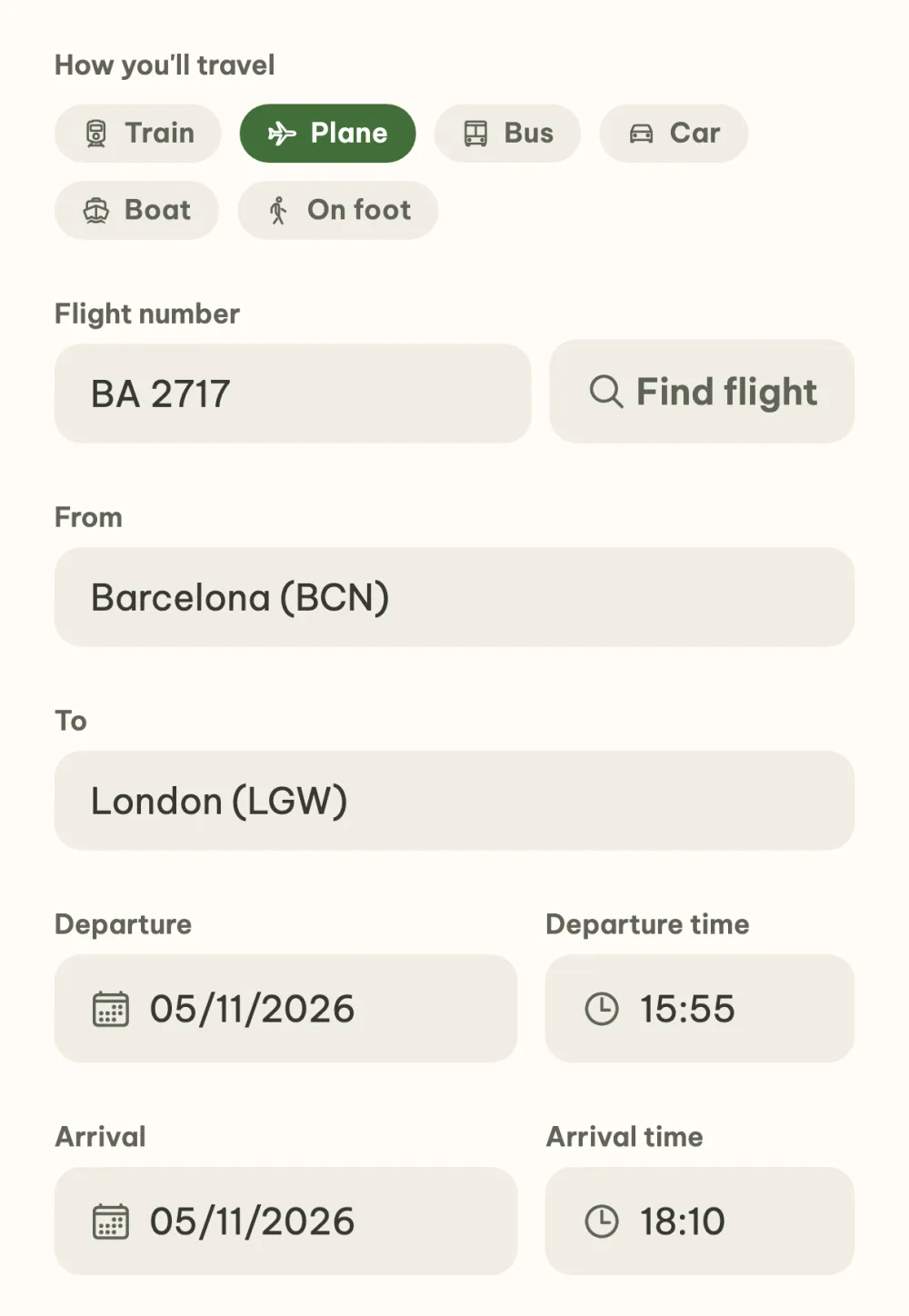
Add the flight by its number. A flight is an item in the itinerary. Tap the plus, choose Trip and Plane and enter the number from your ticket in the Flight number field, for example BA 2717. Tap Find flight and the app fills in the airports and the departure and arrival times. If you haven't picked a departure date yet, the date picker pops up first. Check the details and save with the Add to itinerary button.
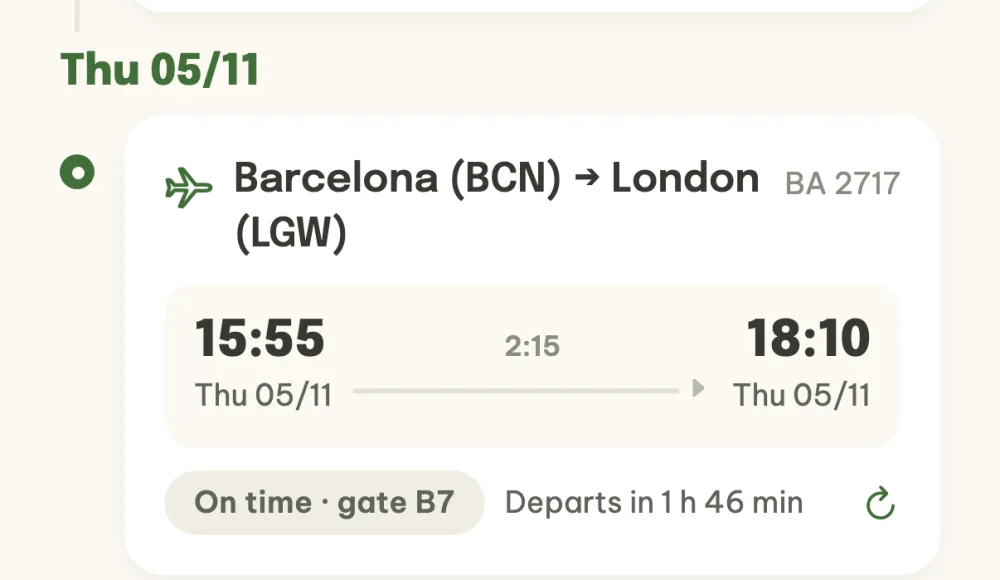
Follow the status on the timeline on the day of the flight. On the day of departure the flight card shows the current status, from three hours before departure until an hour after arrival. The label tells you whether you are on time and which gate you leave from, and next to it a countdown to departure runs. The flight number is on the right in the card header.
Refresh the status with a tap. The first time you open it, the status loads by itself, after that you refresh it with the icon on the right of the card. When the departure moves, you see the new time in orange with the scheduled time crossed out next to it, the label shows the delay and the note the new gate.
Open the flight details. Tapping the card opens the details with a large status card: the new departure time, how many minutes behind schedule and when the status was last valid. When the gate has changed, a warning reminds you to let the others know. Below the times are the Terminal, Gate and Check-in tiles, further down a map of the route with the Navigate button to the airport.
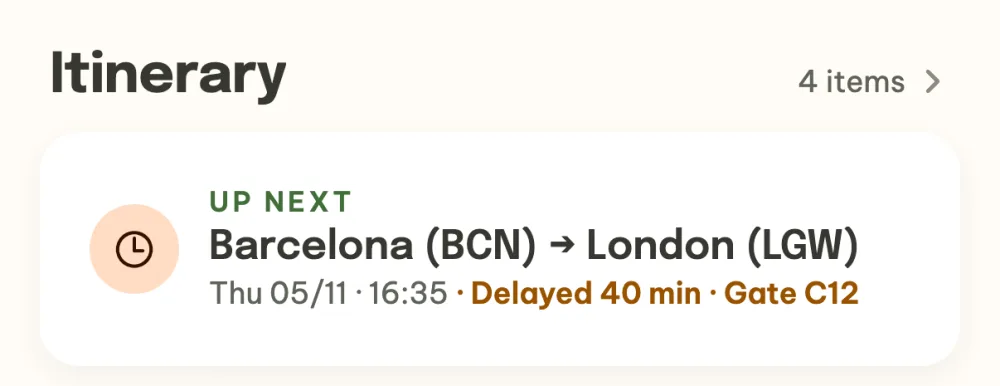
Find the flight status in the event details. In the Itinerary section the Up next card carries the status too: an icon for the status, the time from the current estimate and the delay with the gate in colour. During the flight a thin bar below it shows how far along you are. While the event is under way, today's flight is also at the top in What now? with the Open button.
FAQ
Why can't I see the flight status the day before?
The status only shows on the day of the flight, from three hours before the scheduled departure until an hour after arrival. The flight plan is on the card the whole time.
Does everyone have to load the status separately?
No. It's enough for one of you to load it and the others see it too. Until someone loads it, the card has the Check flight status button.
What if the app can't find the flight?
When you add it, a short hint appears below the Find flight button and you fill in the airports and times by hand. If the app can't find the flight on the day, the label on the card says so: correct the number or date in the item, or refresh the status again in half an hour.
What does the app show after landing or when a flight is cancelled?
After landing, the Landed label and the belt where your baggage is. A cancelled flight shows in red and the note reminds you to check your email from the airline.
Does it work for a train or bus too?
For a train, bus or boat you fill in the connection number, departure and arrival in the item yourself. The app shows the live status only for a plane with a flight number filled in.