 Vyrazíme
How to make a rota for a group trip
Who cooks, who drives and who looks after the kids, day by day in one rota that everyone signs up to. Step by step, how to share out the duties.
At a cottage or on an event over several days, duties are best shared out in advance: who does the Saturday barbecue and who takes the kids for the morning. With everything in one rota, everyone sees what is coming up for them and the free duties get taken in no time.
In a Vyrazíme rota, as the video shows, the items are grouped by the days of the event. You sign up with one tap and in the event details you see what is still free.

What Vyrazíme does
- A rota by day. Items are grouped by the days of the event.
- Several rotas in one event. For example Who cooks, a duty rota and the programme, each with its own name and description.
- Sign up with one tap. Tick yourself or anyone else, and several people can sign up for one item.
- Open to everyone. Anyone in the event can add, edit and delete items.
- Free duties in view. In the event details you see how many items are still free, and when you are not signed up anywhere, the Sign up button waits for you in the What now? panel.
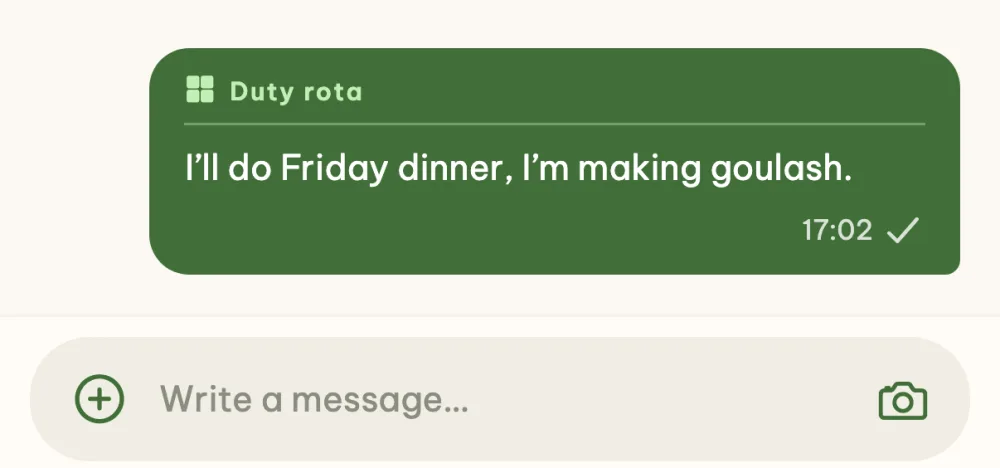
- Talk it over in the chat. A message written from the rota carries a label with its name in the chat, and the label leads back to the rota.
Step by step
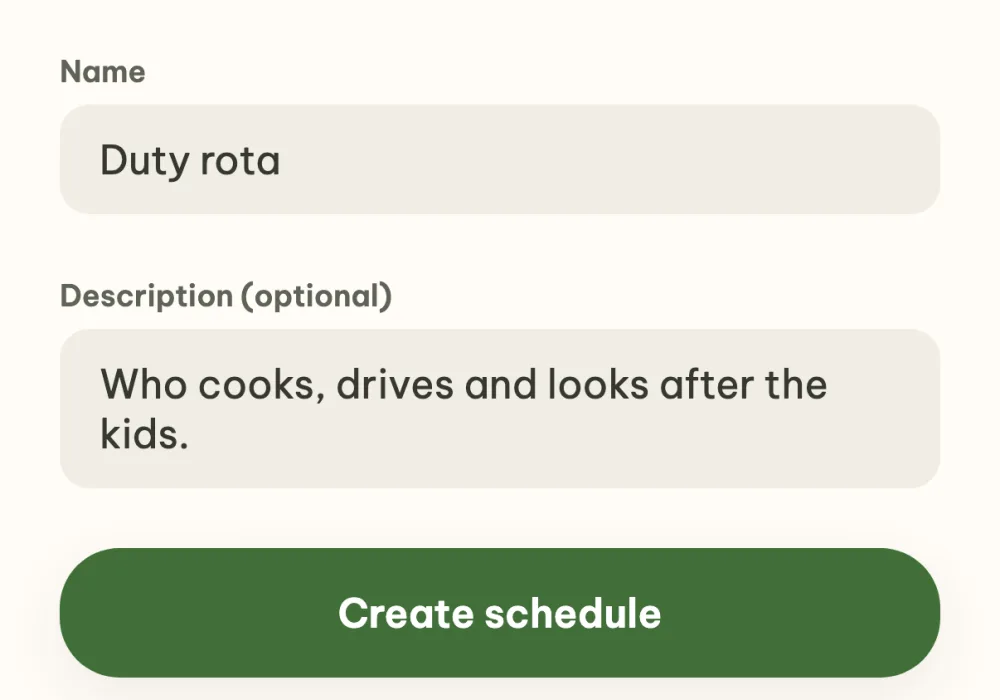
Create a rota. In the What's next? panel of the event details, tap the Roster tile. Type a name, such as Duty rota or Who cooks, and an optional description of what belongs in the rota. The Create schedule button opens the new rota straight away, still empty.
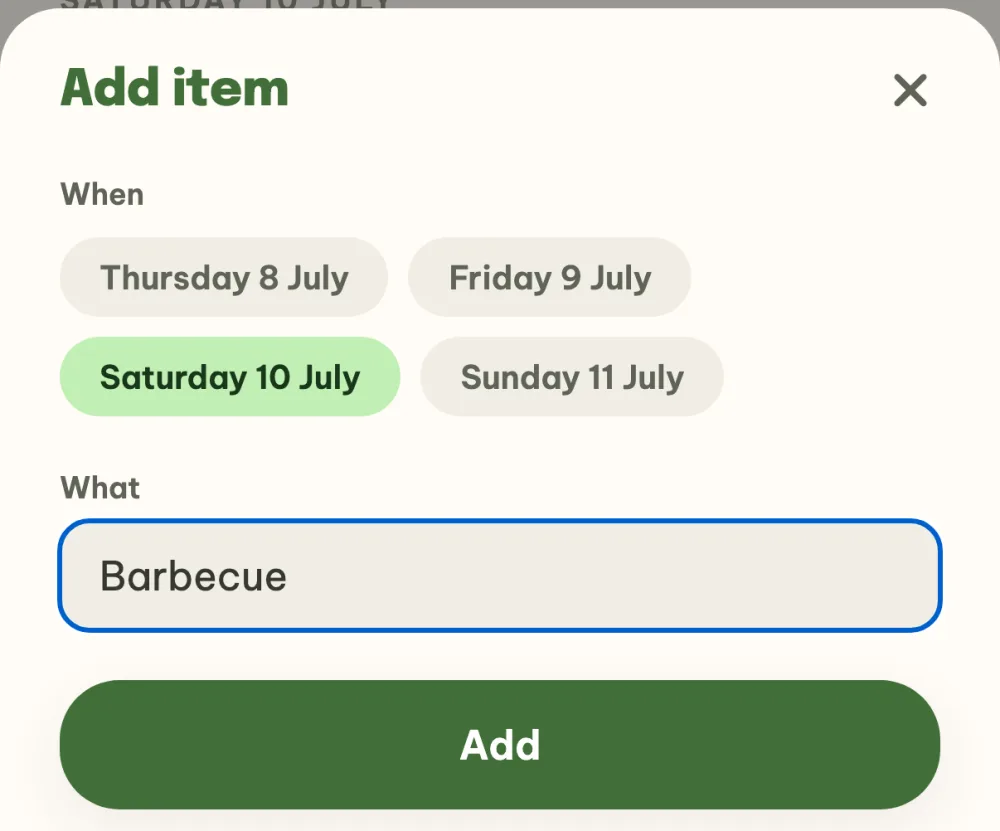
Add items. Tap Add item, pick a day under When and type what it is under What, such as Breakfast, Food shop or Drive there. You can only pick from the days the event lasts. Save the item with the Add button.
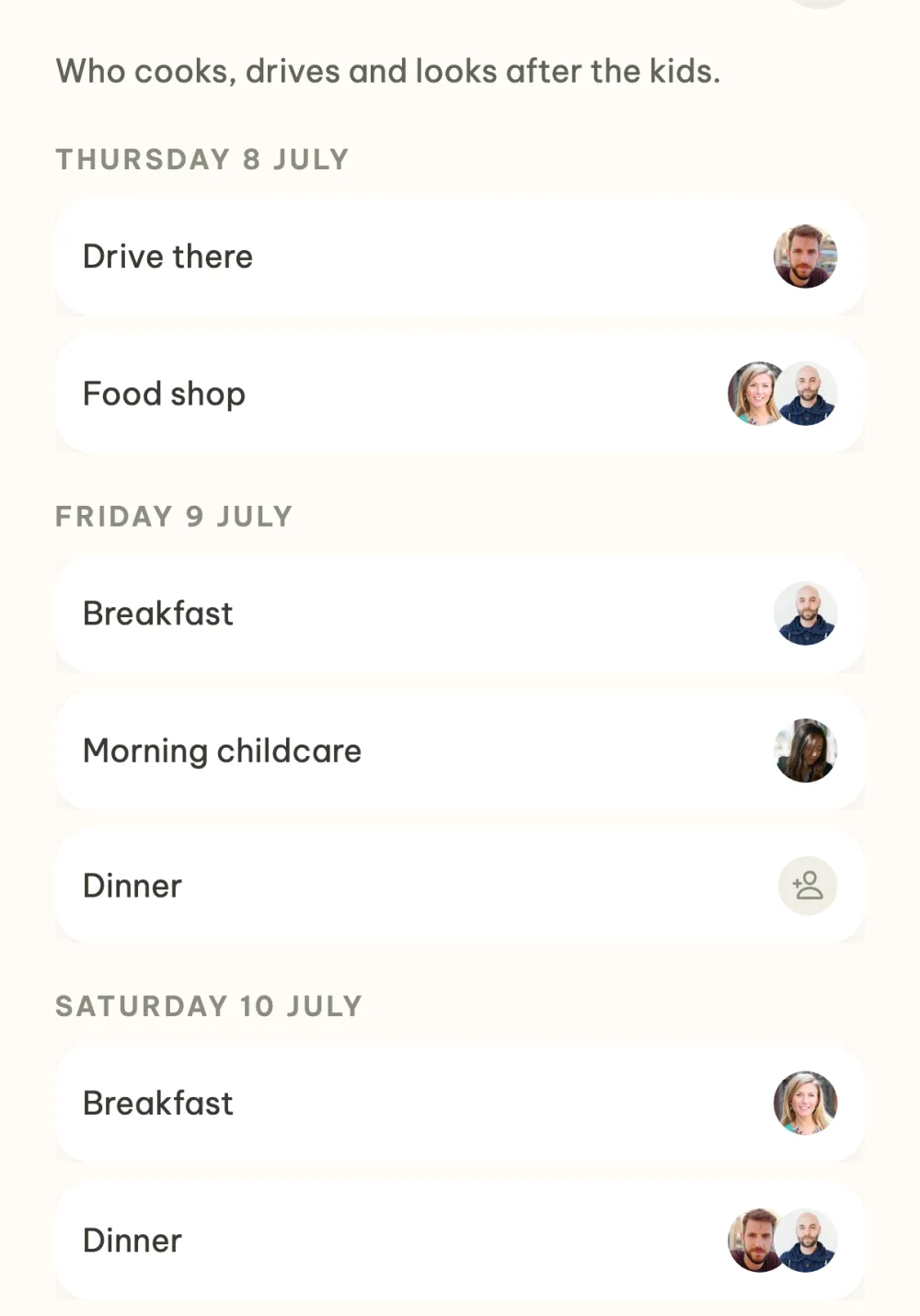
Go through the rota day by day. Items are grouped by day. On the right of each one you see the avatars of the people signed up, and a free item has a grey icon. Tap the text to edit the item or move it to another day, swipe it to the left to delete it.
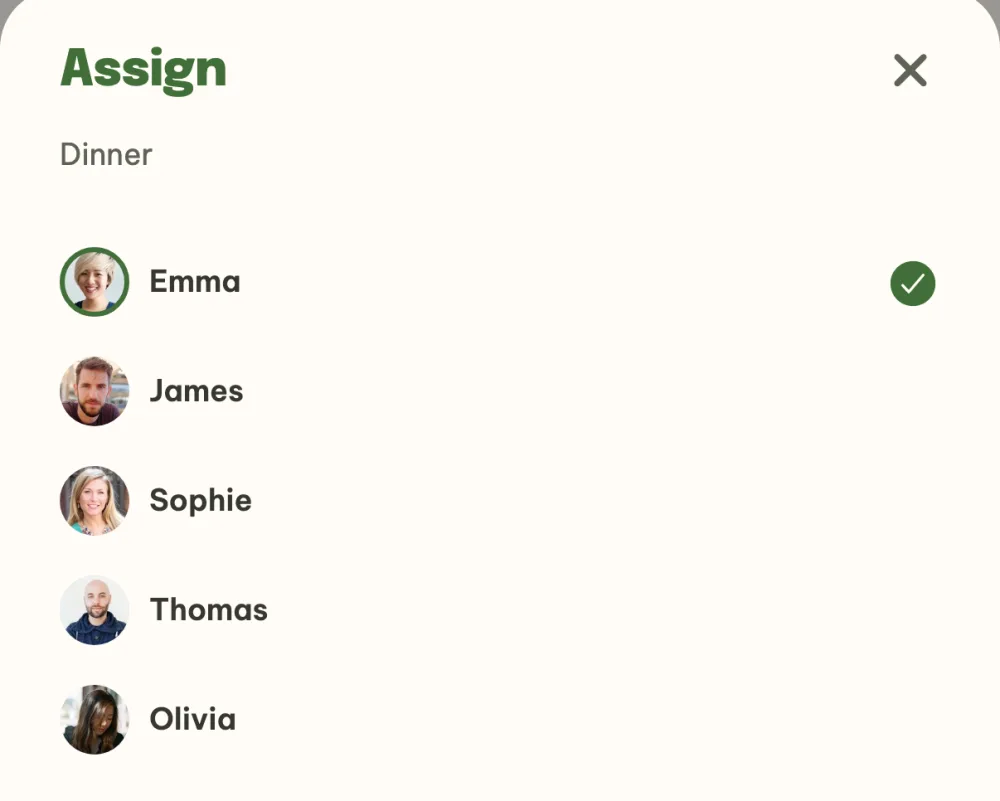
Sign up for a duty. Tap the icon or the avatars on the right of an item and tick yourself in the list of participants. You assign anyone else the same way, and several people can sign up for one item. Untick to cancel the sign-up.
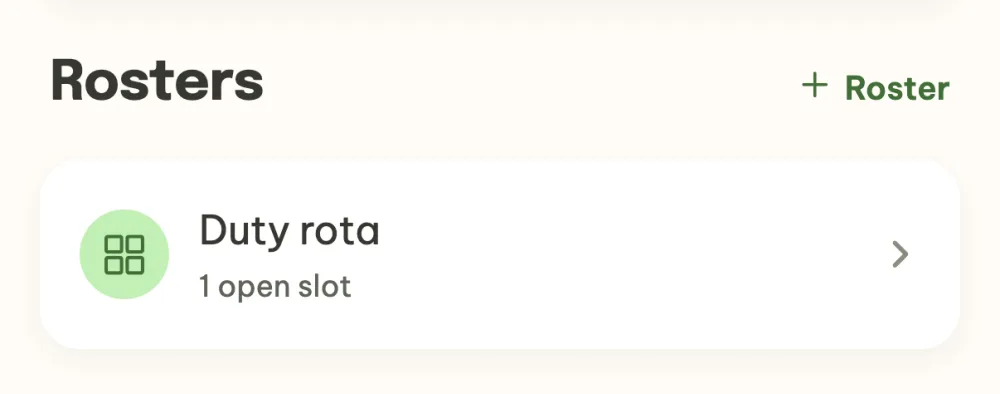
Keep an eye on free duties in the event details. In the Rosters section, each rota shows under its name how many items still have nobody, or All taken. When something is free and you are not signed up anywhere, an orange Sign up waits for you in the What now? panel with a link straight to the rota.
Talk it over in the chat. With the floating chat button on the rota you write to the event's group chat. The message has a label with the name of the rota at the top, and tapping it takes anyone straight back to the rota.
FAQ
Who can edit the rota?
Anyone in the event. They can add, edit and delete items and sign-ups, their own and other people's, as neither the rota nor an item has an owner. Only a guest who joined through the shared link without an account cannot create a rota.
Can I create several rotas for one event?
You can. For example Who cooks and the programme separately, each with its own name and description. In the event details you find them all in the Rosters section.
How do I move an item to another day?
Tap its text, or hold it, and pick another day in the Edit item window. The item moves to the end of that day and the people signed up stay with it.
How do I delete an item?
Swipe it to the left and tap the red bin. The item disappears together with everyone signed up.