 Vyrazíme
How to split tasks before a trip with friends
Who books the cabin, who buys the train tickets and who brings the games. All tasks in one list, a name next to each. Step by step, how to split them.
Before every trip together there are a few things to sort out: book, buy, borrow, bring along. When they are all in one list with a name next to each, everyone knows what they are taking care of and finished things are visible straight away.
Vyrazíme has tasks for this, as the video shows: you write a task in one line, assign it to anyone in the event and tick it off once it is done. Your own tasks are highlighted and in the event details you see how many are already done.

What Vyrazíme does
- A shared list. Everyone in the event sees the tasks and every change shows up for the others straight away.
- A task in one line. Type it, confirm with Enter and carry on with the next one. Tap the name to rewrite it.
- Assign it to anyone. On each task you choose who is taking care of it, and they get a notification on their phone.
- Copy to everyone. A task that everyone has to do goes out with one tap, every participant gets their own row.
- Anyone can tick it off. Anyone in the event can complete a task, and an unassigned task is then assigned to whoever completed it.
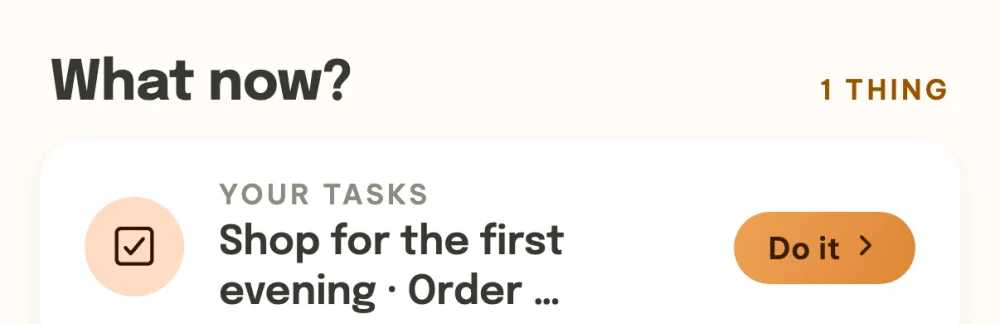
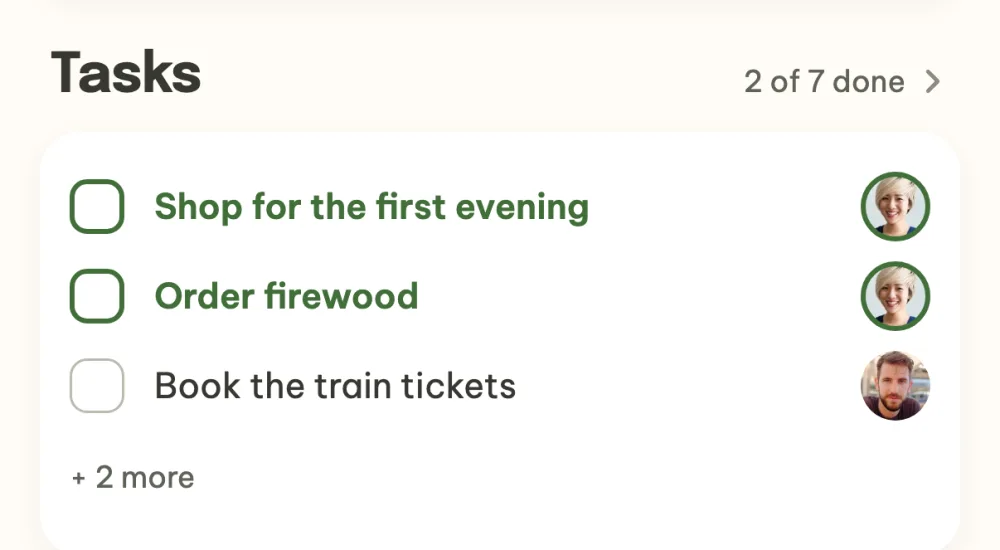
- Your tasks in view. Your own tasks are highlighted in green, and in a confirmed event they also wait for you in the panel What now? at the top of the event details.
- A shared order. Drag tasks to rearrange them and everyone sees the new order.
- Talk about a task. Swipe a task to the right to write a message about it in the event chat.
Step by step
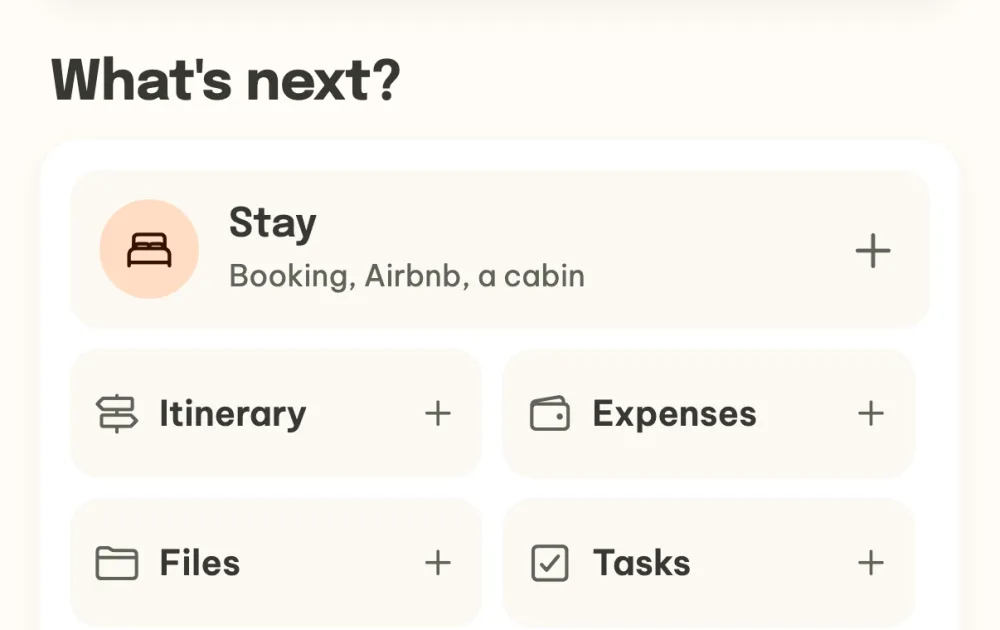
Open the tasks. In the event details, find the panel What's next? and tap the Tasks tile there. As soon as the event has its first task, the tile disappears and you find the tasks in their own section of the event details.
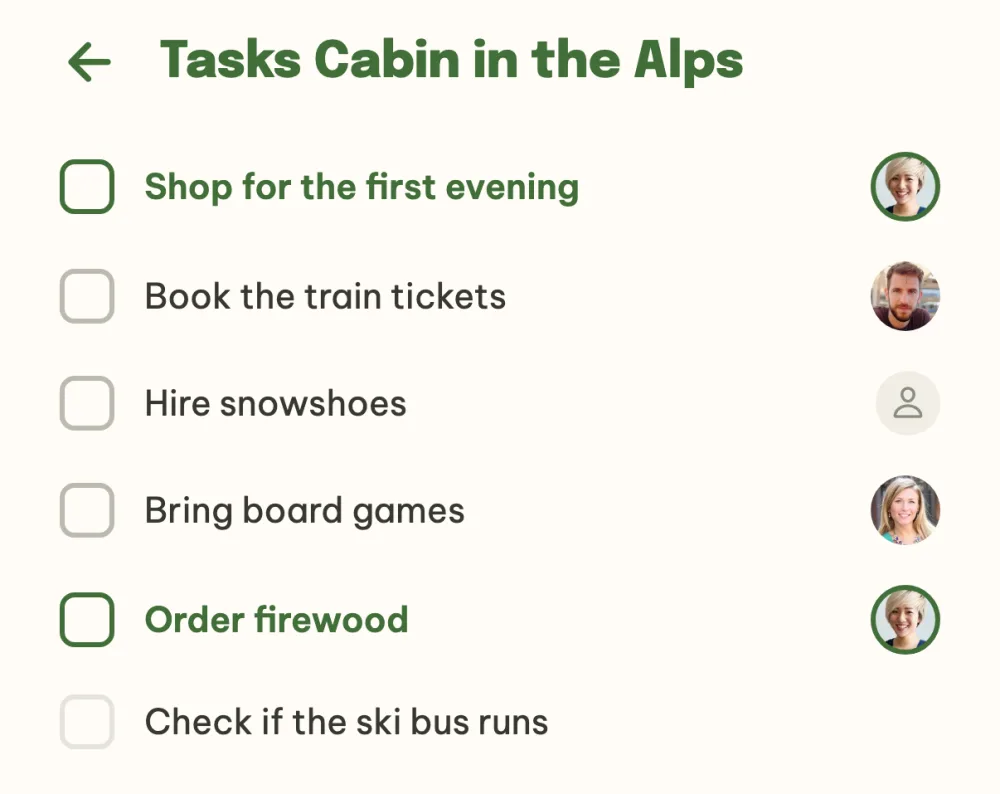
Write the tasks. Tap the Add a task... row, write what needs sorting out and confirm with Enter. The new task goes to the end of the list and you can write the next one right away. Tap a task's name to rewrite it.
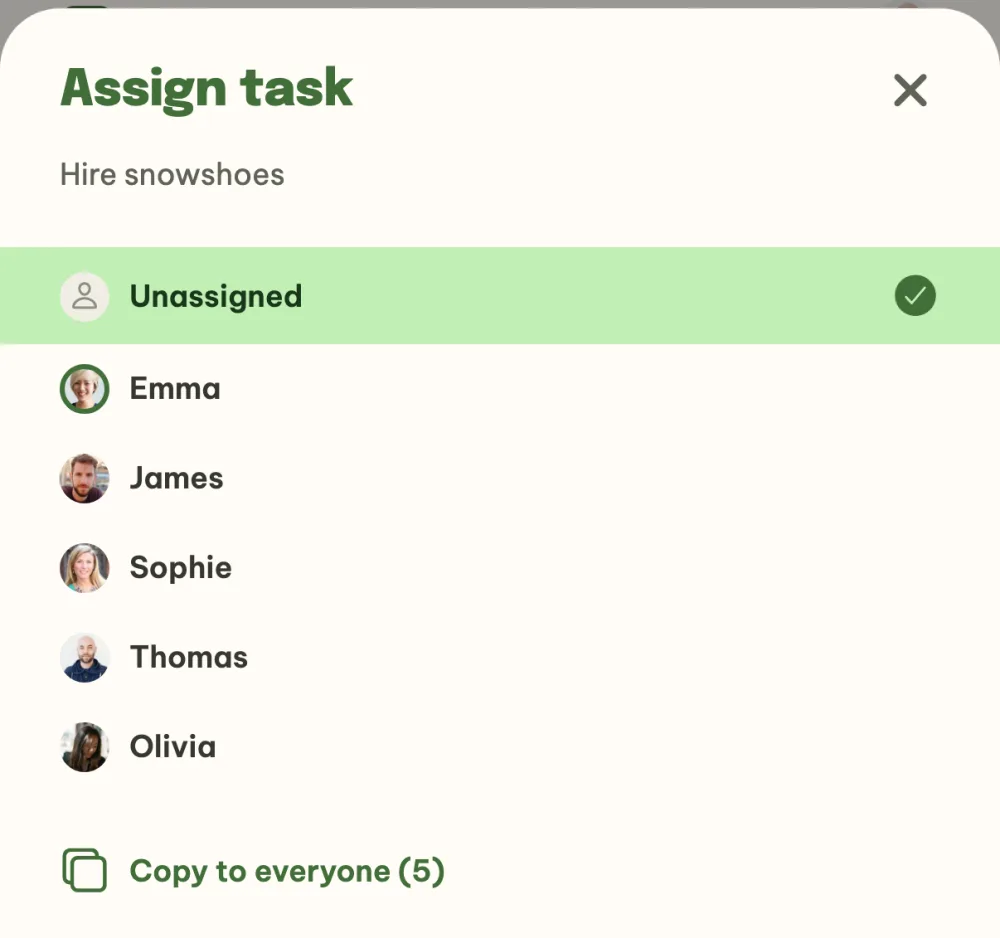
Assign a task. Tap the person icon on the right of the task and choose who is taking care of it, or leave it Unassigned. A task that everyone has to do goes out with the Copy to everyone row: every participant gets it as their own row.
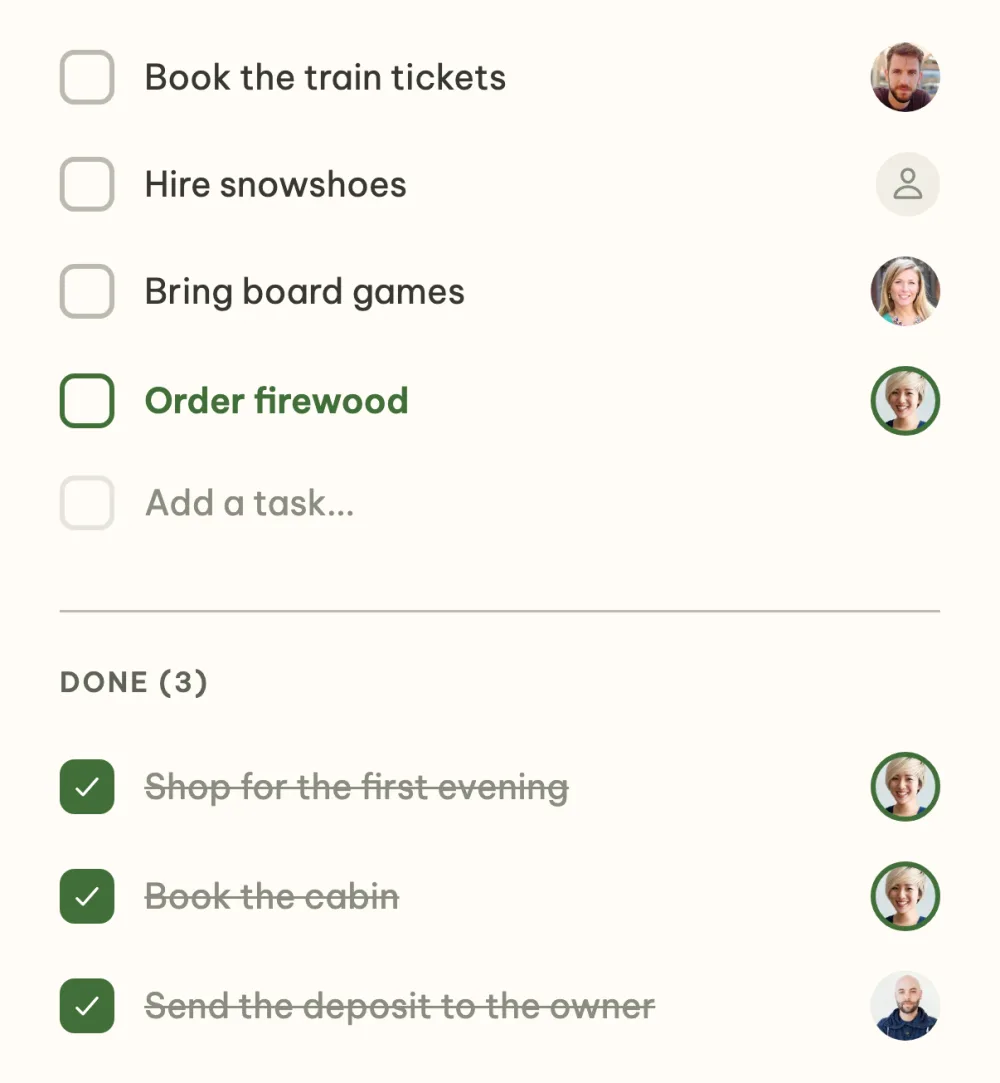
Tick off what is done. Tap the square on the left to complete a task and it moves to the Done section. Anyone in the event can tick it off, and if the task did not belong to anyone, it is assigned to whoever completed it.
Keep an eye on your tasks at the top of the event. Your tasks are highlighted in green in the list. In a confirmed event they also wait for you in the panel What now? at the top of the event details, under the Your tasks label. The Do it button takes you straight to the list.
See the overview in the event details. In the Tasks section you see the open tasks with avatars and, at the top right, how many are already done. You can tick a task off right here too, and tapping anywhere else on the card opens the whole list.
FAQ
Who can add and tick off tasks?
Anyone in the event. They can add a task, rewrite it, assign it and tick it off, even when it belongs to someone else. A guest who joined through the shared link without an account can only see the tasks.
Will my friend know they have a new task?
Yes. When you assign a task to them, they get the notification You've got a new task on their phone with the name of the task, and tapping it opens the event's tasks straight away. When you assign a task to yourself, no notification is sent.
How do I change the order of tasks?
Hold your finger anywhere on the row of an open task and drag it up or down, in the browser on a computer you grab it with the mouse. Everyone sees the new order. Completed tasks are not sorted.
How do I delete a task?
Swipe it to the left and tap the red bin. A task also disappears when you clear its whole name and tap somewhere else.
How do I talk about a task?
Swipe the task to the right and tap the chat button. The event chat opens and the message you write belongs to that task, so the others know straight away what it is about. Everything the chat can do is in the guide Group chat for your event.