 Vyrazíme
How to add your events to your phone calendar
Confirm you're coming and the event is in your calendar. By email invitation, or with a sync that keeps all your events in your calendar up to date.
An event you're going to belongs in your calendar, next to work, family and everything else. At a glance you see when you're off and what else you can plan around it.
Vyrazíme gets the event into your calendar in two ways, and the video at the top shows both. Once you confirm you're coming, it sends you an invitation by email. Or you add the Vyrazíme calendar to your phone once and your events appear in it by themselves.

What Vyrazíme does
- Calendar invitation by email. Once you confirm you're coming, you get an email with an invitation. Open it and the event is in your calendar.
- Changes carry over. A new date updates the entry in your calendar, and cancelling your attendance removes it.
- Calendar sync. All your events with a confirmed date in one calendar that updates itself.
- Calendar on your phone and your computer. Works with the iPhone calendar, Google Calendar and Outlook.
- Proposed dates. If you like, you can also see dates that are still being voted on in your calendar.
- Reminders. The day before the event, your calendar reminds you. Vyrazíme also sends you a countdown and reminds you to confirm attendance and to vote.
Step by step
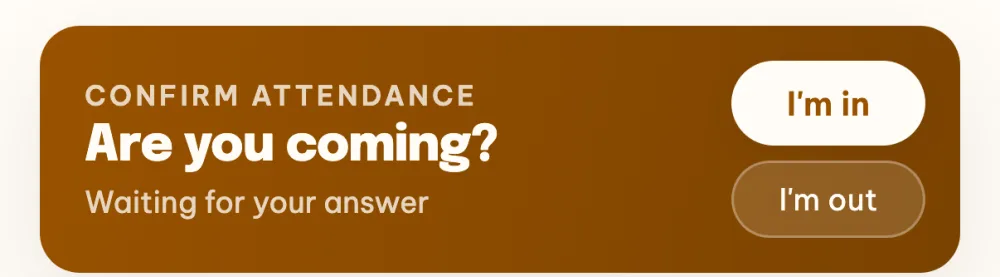
Confirm you're coming. Once the event date is decided, the Are you coming? card shows in the event detail with the buttons I'm in and I'm out. Tap I'm in and you get an email with a calendar invitation.
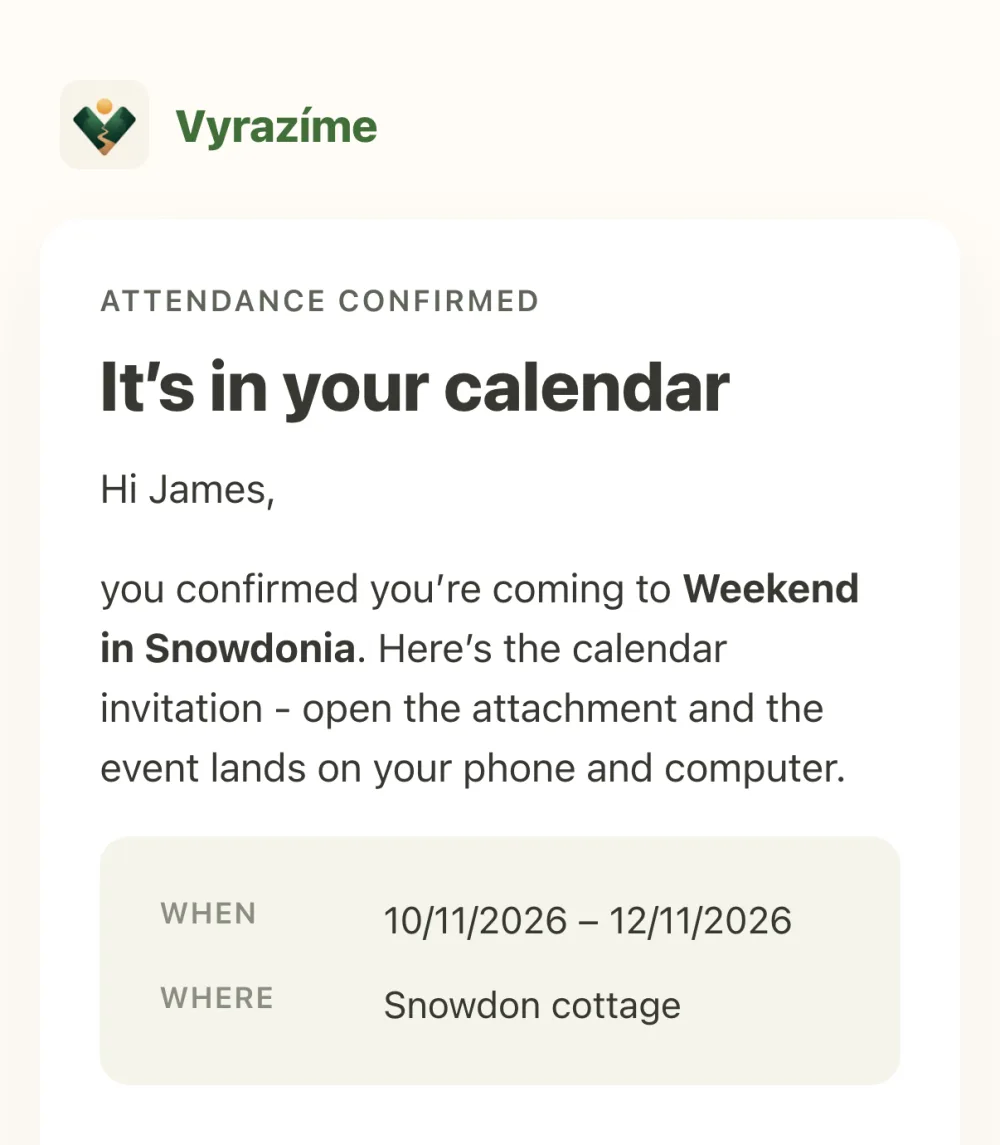
Open the invitation from the email. The email has the calendar invitation attached. Open it and the event is in your calendar on your phone and your computer. An event of several days goes in as all-day, a one-day event with a meeting time starts at that time, and the day before, your calendar reminds you that the event is coming up.
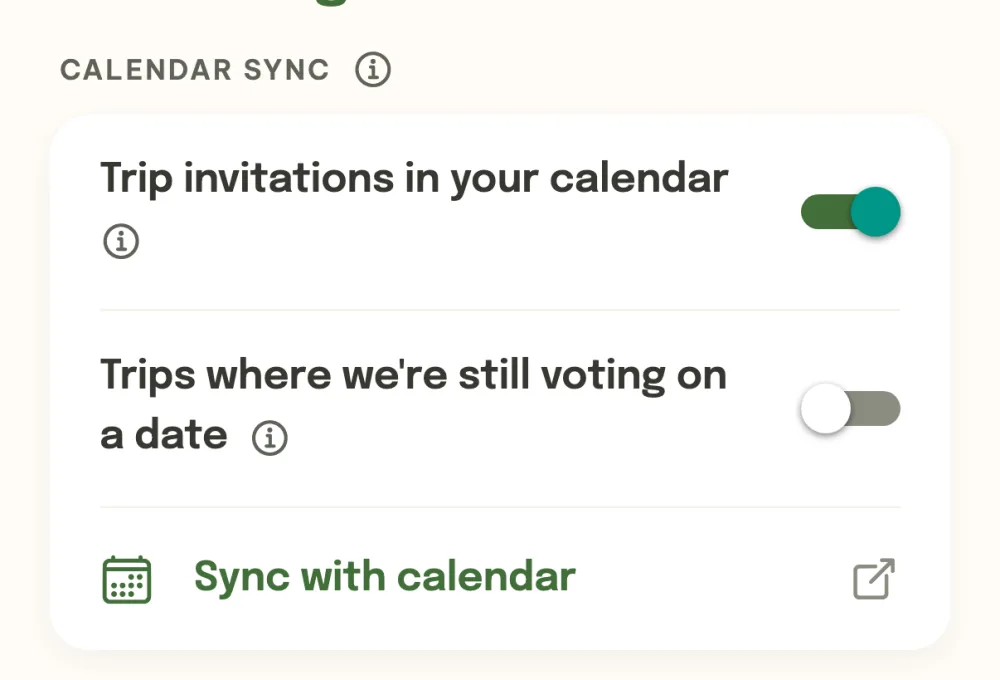
Turn on calendar sync. In the event list, tap your avatar and in Settings find the Calendar sync card. Tap Sync with calendar and your phone offers to add the Vyrazíme calendar. It then updates itself and has all your events with a confirmed date.
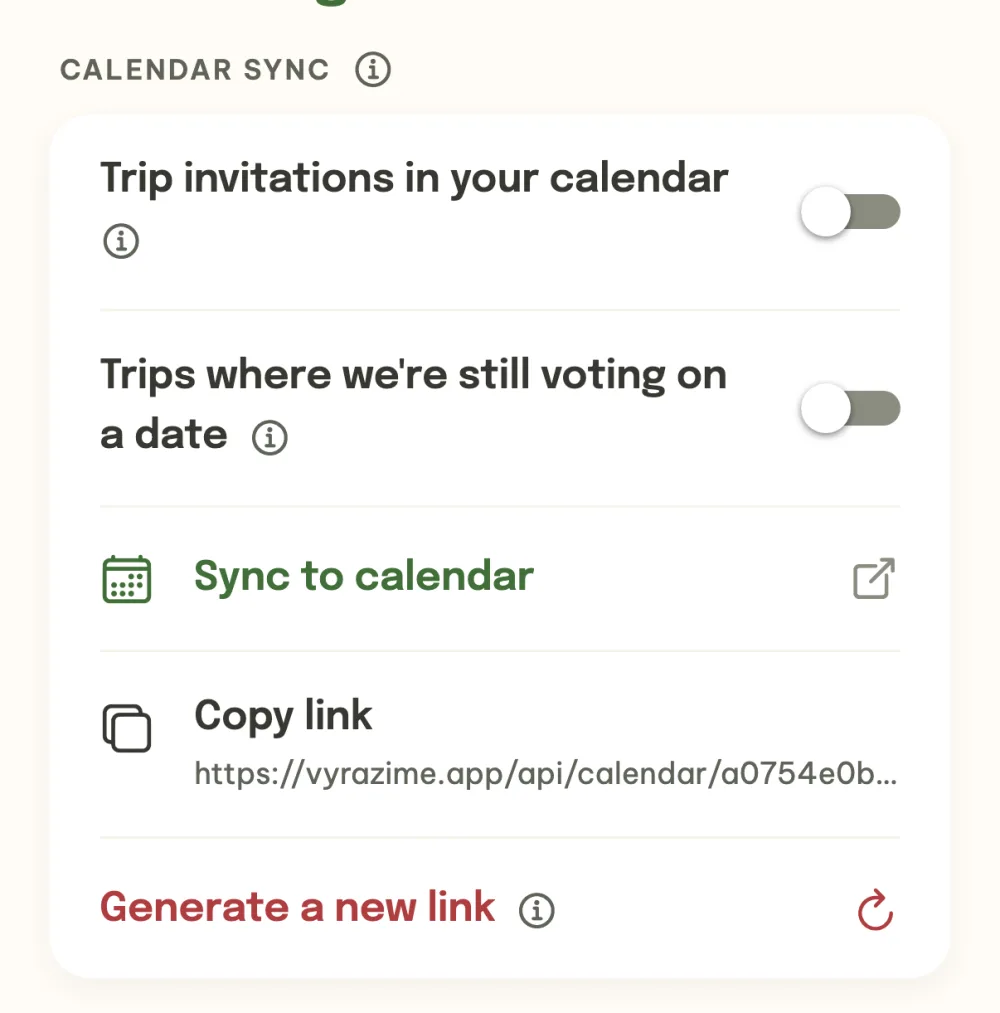
Choose what you see in your calendar. Turn on the switch Trips where we're still voting on a date and the proposed dates are added to your calendar as tentative. Copy link saves the calendar link to your clipboard, handy for Google Calendar or Outlook on your computer. With sync turned on, email invitations switch off by themselves, as your events now reach your calendar all the time.
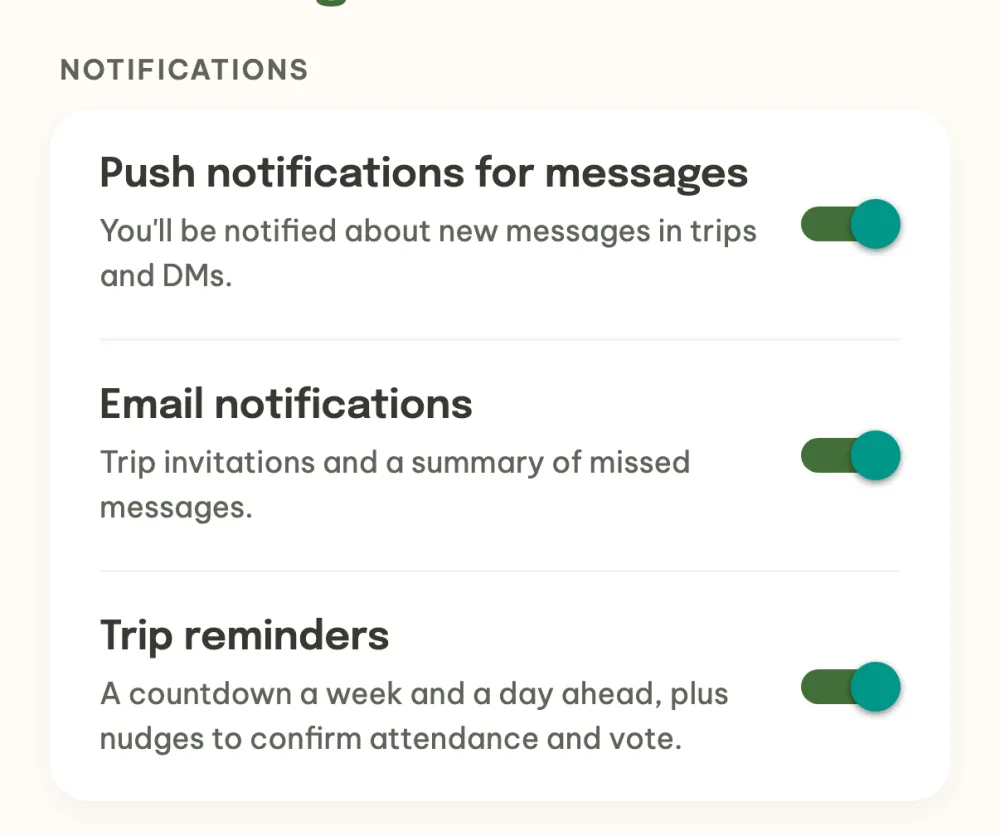
Get reminded of what matters. In the Notifications card, turn on Trip reminders: a countdown a week and a day before the event, and a reminder when you still need to confirm attendance or vote.
FAQ
What if the event date changes?
You get an updated invitation and the entry in your calendar is overwritten, no second one appears. With sync turned on, the change shows up in your calendar by itself.
What if I cancel my attendance or the event is cancelled?
You get a cancellation email. Open the attachment and the entry disappears from your calendar. The cancellation always arrives, even if you've turned off invitations in Settings in the meantime.
Which events will I see in my calendar?
With sync, all events with a confirmed date, apart from the ones you've declined. Turn on the switch Trips where we're still voting on a date and the proposed dates appear too.
Can I have email invitations and sync at the same time?
You can. Invitations switch off by themselves when you turn on sync, because your events now reach your calendar all the time, but you can turn the Trip invitations in your calendar switch back on whenever you like.
Who can see my calendar?
The calendar link is yours alone. If you show it to someone by mistake, tap Generate a new link: the old one stops working and you add the new one to your calendar.