 Vyrazíme
Event schedule and shared notes
A day-by-day plan, the Wi-Fi and the cabin door code, who brings what. Shared notes for your event that you all write at once, right in the event details.
Every event comes with a few things worth writing down: the plan for each day, the Wi-Fi password and the cabin door code, who brings what. Anyone in the event can add to them.
That is what notes in Vyrazíme are for, as the video shows. You write the event schedule and other notes, from templates or with your own name, together and in real time, and they sit in the event details as blocks of text.

What Vyrazíme does
- Event schedule. The What we'll do note for the day-by-day plan, trips and meeting times.
- Note templates. Important info, Tips & ideas, Who brings what and Notes for next time, each with a hint about what goes in it.
- Custom note. Name the note whatever you like and change the title at any time.
- Writing at once. Anyone in the event can write in a note, other people's changes show up straight away and you see who is editing right now.
- Saves itself. The text saves itself as soon as you finish typing.
- Right there in the event details. Notes with content sit in the event details as blocks of text and the links in them open with a tap.
- Note in the chat. Send a note to the event chat and the card in the message leads straight to it.
Step by step
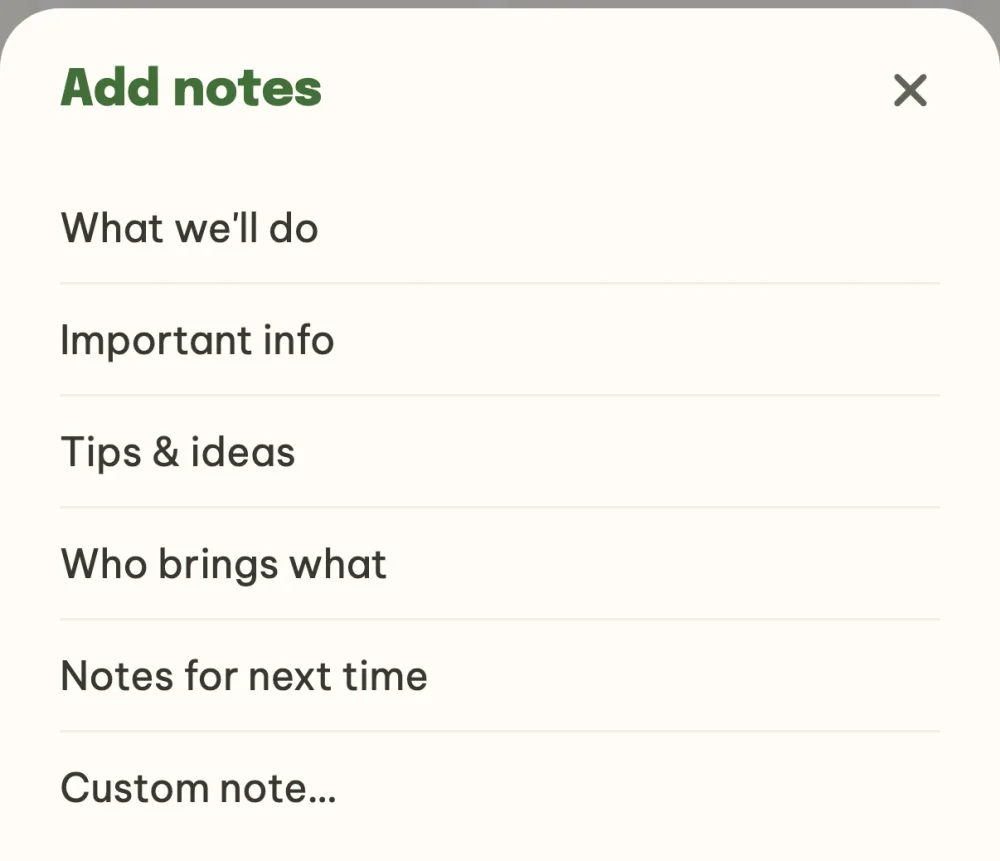
Pick a note from the palette. In the event details, tap the Notes tile in the What's next? panel and choose what you want to write (What we'll do, Important info, Tips & ideas, Who brings what, Notes for next time, or Custom note…). The editor opens straight away.
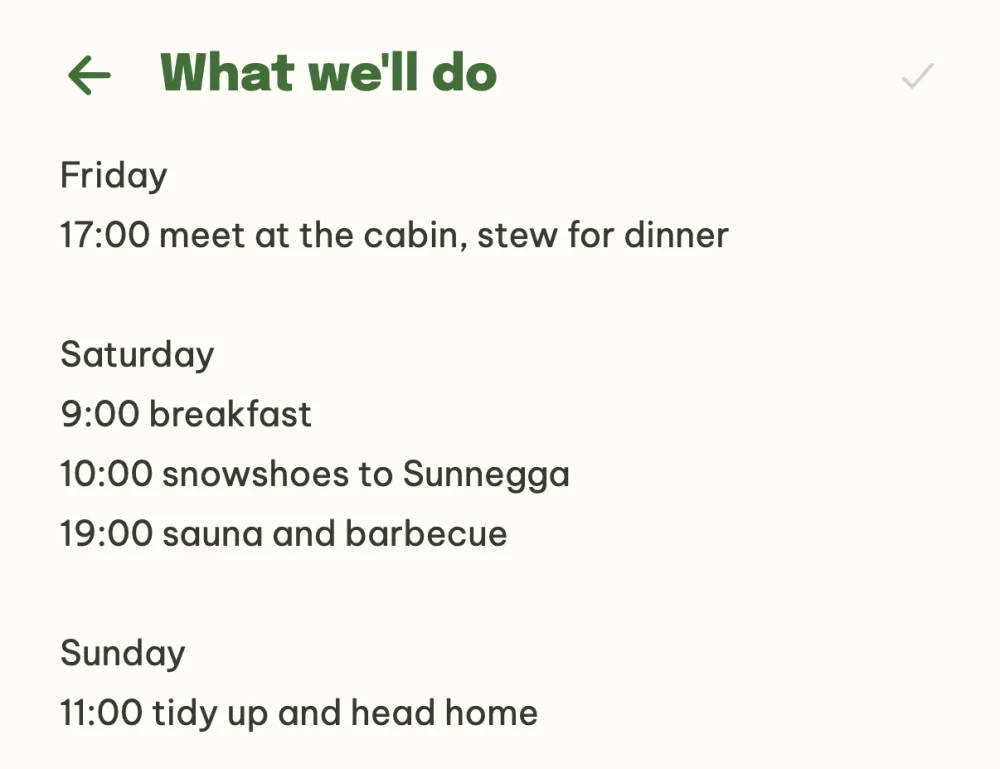
Write the schedule. In the What we'll do note, write the plan for each day: when you meet, where you go on Saturday and what is on in the evening. There is nothing to save, the text saves itself as soon as you finish typing.
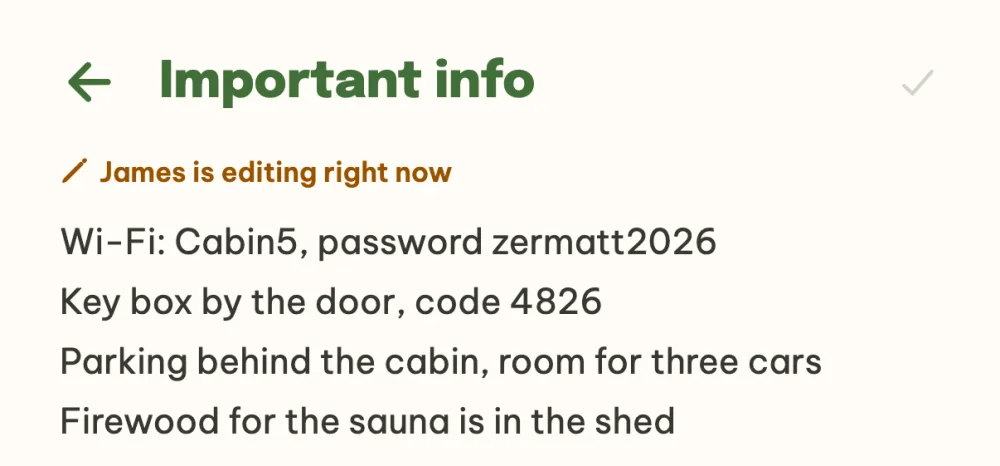
Write together. Anyone in the event can edit the note, even at the same moment as you. Other people's changes show up right in the text and below the title you see who is editing right now.
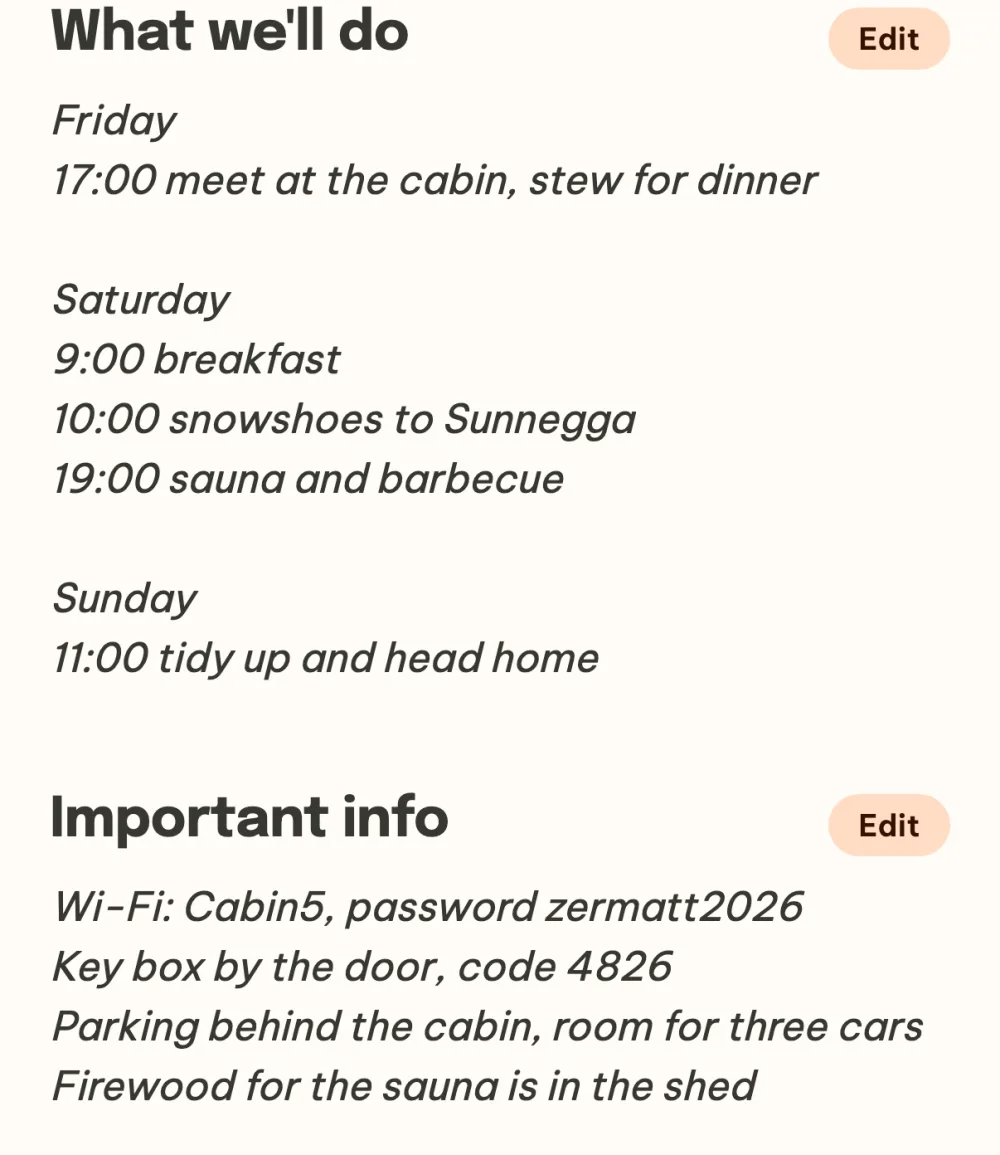
Keep the schedule in the event details. Notes with content sit in the event details as blocks of text with a title. Open a note by tapping anywhere in the text or on Edit to the right of the title, and links in the text open in the browser. If you delete all of a note's text, it disappears from the details.
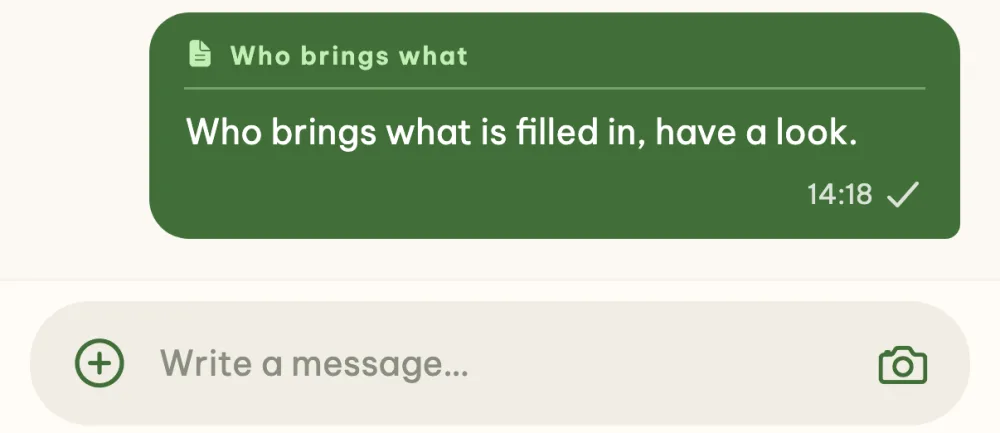
Send a note to the chat. The chat button at the bottom right of an open note lets you write to the event chat. The message carries a card with the note's name and anyone who taps it goes straight to the note.
FAQ
How do I rename a note?
The title in an open note is a text field, so you can change it at any time, even for a note created from a template. If you delete the whole title, the original name comes back.
How do I delete a note?
Delete all of its text. An empty note disappears from the event details on its own, no delete button needed.
Who can edit notes?
Anyone in the event. A guest who joined through the shared link without an account can see the notes but not edit them.
What if two of us write at once?
That is fine, changes merge as you go and everyone sees the others' text as they type it.
Can I have more than one note?
Yes. The Notes tile in the What's next? panel stays there, so you can add as many notes as you need, including several custom ones with different names.